7 Best Canva AI Tools for College Students Beyond Basic Templates
Seven Magic Studio tools tested on real college tasks: fest sponsorship decks, society Instagram reels, lab flowcharts, and placement club posters.
If you only use Canva to drag your college logo onto a free template, you are doing an hour of manual resizing, font-matching, and copywriting that Canva's Magic Studio can finish in four minutes. According to Business Today, India is Canva's fourth-largest market globally with over 666 million designs created in 2024, yet most campus club heads still rebuild their cultural fest posters manually for every social platform. Testing the 7 best Canva AI tools for college students across real society workloads from sponsorship pitch decks to WhatsApp event statuses shows you exactly which tool to click and which ones require a Pro account workaround.
In short
- Use Magic Switch to convert one vertical fest poster into an Instagram Story, horizontal banner, and presentation deck simultaneously without losing your text hierarchy.
- Use Grab Text to pull uneditable dates and venue names out of flattened PNGs passed down by graduated seniors, though you must manually replace curved or hand-lettered fonts.
- Use Magic Eraser to brush out stray water bottles or photobombers from society stage photos, and Background Remover to isolate chief guest portraits in one click.
- Use Magic Write by pressing the
/key inside any Canva Doc or slide to draft corporate sponsorship request emails up to 2,000 words per generation. - Check your college
.eduor.ac.inaccount permissions first: institutional Canva for Education plans often keep Magic Write disabled until your faculty administrator toggles it on.
Which 7 Canva AI tools matter for college club work and assignments?
The seven tools that save the most hours for Indian college students are Magic Switch, Magic Media, Grab Text, Magic Grab, Background Remover, Magic Eraser, and Magic Write. Together, they cover layout resizing, custom cultural illustration, old poster recovery, subject isolation, photo cleanup, and sponsorship copywriting inside a single browser tab.
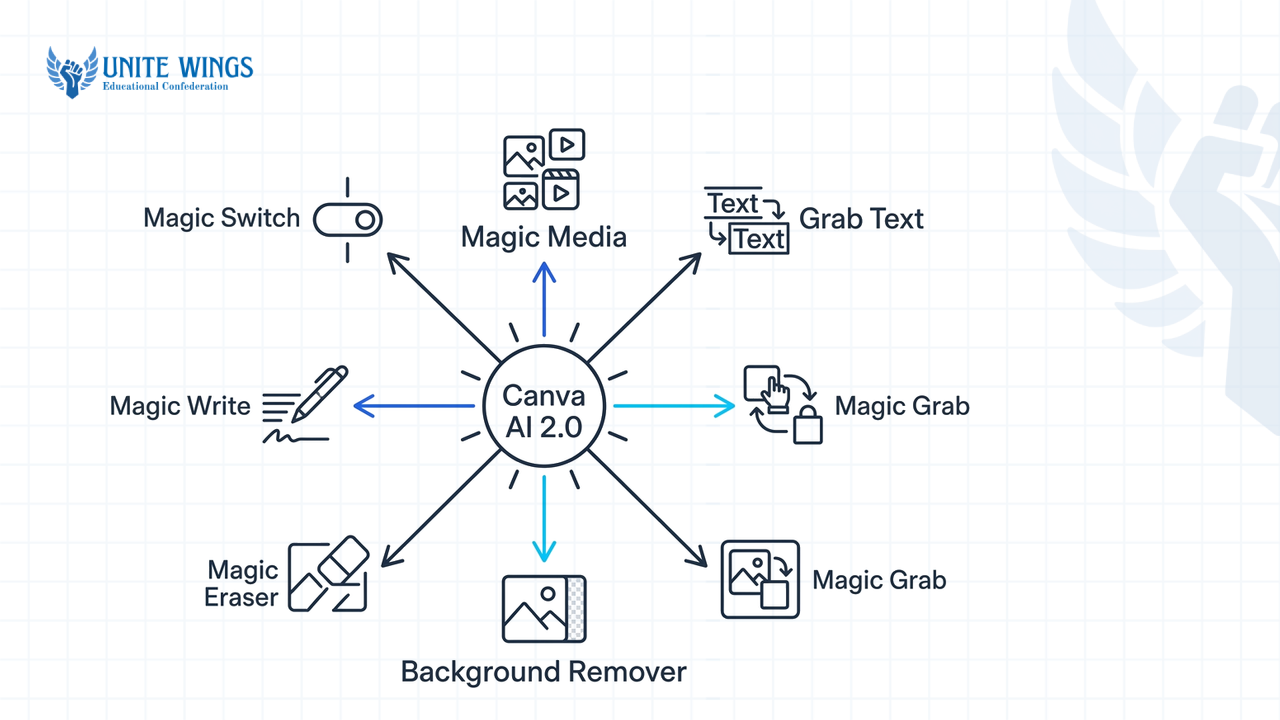
According to Tisatech's 2026 guide, Canva launched Canva AI 2.0 in April 2026, introducing object intelligence where every design element stays on a separate editable layer rather than flattening into a single uneditable image. That architectural change matters when your faculty coordinator asks you to move a chief guest's name five minutes before printing.
| Tool name | What it does | Best Indian college use case | Account tier availability |
|---|---|---|---|
| Magic Switch | Reflows layouts into new aspect ratios or document types and translates text | Turning an A4 notice board poster into an Instagram Story and horizontal banner | Canva Pro / Education |
| Magic Media | Generates images, graphics, and 4-second videos from text prompts | Creating custom stage backdrops with mandala and neon motifs for cultural fests | Free (limited credits) / Pro |
| Grab Text | Extracts baked-in text from flat images into editable text boxes | Updating dates on last year's fest poster screenshot when the source link is lost | Canva Pro / Education |
| Magic Grab | Isolates and lifts a physical object out of a flat photo so you can move it | Repositioning a robotics club drone or trophy inside an event announcement graphic | Canva Pro / Education |
| Background Remover | Strips the entire background behind a primary subject in one click | Cutting out speaker headshots and sponsor logos for placement cell brochures | Canva Pro / Education |
| Magic Eraser | Removes unwanted objects by brushing over them and blending surrounding pixels | Erasing photobombers, stray cables, or plastic cups from auditorium photos | Canva Pro / Education |
| Magic Write | Generates outlines, emails, and social media captions from a text prompt | Drafting cold sponsorship emails to local brands and society Instagram captions | Free (25–50 uses) / Pro |
What most students get wrong: assuming their college email automatically gives access to every tool on this table. While Canva for Education is free for verified students and eligible schools, administrative controls often restrict AI tools like Magic Write on student accounts by default. If the buttons below are greyed out on your .ac.in login, switch to a personal Gmail account to use your free-tier prompt quota or ask your college IT admin to enable Magic Studio in the teacher settings.
How does Magic Switch resize a fest poster into an Instagram Story and banner?
Magic Switch converts a single design into multiple aspect ratios like turning an A4 cultural fest poster into an Instagram Story, a horizontal banner, or a presentation deck in two clicks. As documented by MagicSlides and Coursiv, the layout AI preserves your core text content while automatically reflowing images and headings to fit the new dimensions.
When you run publicity for an engineering symposium or cultural fest, the PR team typically demands the same announcement in three shapes: a vertical graphic for Instagram Stories and WhatsApp Status, a square post for LinkedIn, and a wide banner for the college website or Unstop listing. Rebuilding those manually takes 30 minutes of copying, pasting, and fixing font sizes.
Follow these steps to convert your master poster using Magic Switch (formerly called Magic Resize, per Kim Klassen and Canva):
- Open your completed fest poster on the Canva canvas.
- Click Resize or Magic Switch on the top-left toolbar (or under the File and More (...) menu).
- Tick the target formats you need, such as Instagram Story and Facebook Cover / Banner.
- Click Copy and resize (never pick "Resize this design", or you will overwrite your original poster).
- Open the newly generated tabs and check the text alignment; the AI reflows elements automatically, though you may need to nudge your college logo by half an inch if the aspect ratio shifted from vertical to extreme horizontal.
You can also use Magic Switch for regional outreach and placement prep. According to The Hindu, Magic Switch performs instant multi-language translation across supported documents. Additionally, it can convert a long-form document directly into a presentation. If your NSS unit is running a local awareness drive, you can translate an English poster into supported regional languages inside the same menu without retyping a word. Similarly, if you have written a 1,000-word final-year project synopsis in Canva Docs, click Magic Switch and select Transform into Presentation to generate a base slide deck for your internal viva.
Can Magic Media generate Indian-context illustrations and event backdrops?
Yes, Canva Magic Media generates custom Indian-context illustrations, graphics, and stage backdrops when you include specific regional motifs like mandalas, rangoli, or diyas in your prompt. According to Jisc Involve and AllAipedia, this text-to-image and text-to-graphics generator sits inside Magic Studio and lets you pick visual styles to match your event theme.
Most college society posters look identical because every design lead searches the standard Canva elements library for "Indian festival" or "tech background" and picks the first three free vectors. According to Business Today, Canva has expanded its local library for Indian festivals like Republic Day, Lohri, and the wedding season, yet custom prompts inside Canva's Magic Media give your fest a visual identity no other campus is using.
To generate a custom backdrop for your stage or poster:
- Open your design canvas and click Apps on the far-left navigation bar.
- Search for Magic Media and open the tool.
- Choose between the Images tab (for full backgrounds and realism) or the Graphics tab (for stickers and isolated vectors).
- Type a specific, layered prompt. Copy this example for a cultural night: "Indian college fest stage backdrop with traditional mandala patterns, marigold garlands, and modern neon pink and cyan stage lights, dark background for text overlay."
- Select a style before generating: CapCut notes options like Photo, Watercolor, and Dreamy, while AllAipedia notes Simple, Artistic, and Detailed settings for graphics. Pick Watercolor for literary club magazines or Photo for stage flex banners.
- Click Generate and drag the winning result onto your canvas.
Need motion for an Instagram Reel teaser? Switch to Magic Media's Videos tab. According to a 2024 Jisc Involve overview, the Text-to-Video feature generates short 4-second video clips complete with a watermark in the bottom-right corner, useful for quick background motion behind your fest countdown numbers. If you want your headline text itself to look like 3D metallic balloons or glowing neon tubes, The Hindu points out a companion tool called Magic Morph, which transforms plain text and shapes into furry, glossy, or bubbly textures using a text description.
One limitation to watch: Magic Media struggles when you ask it to render exact English words inside a generated image (like spelling your college's name on a generated trophy). One 2026 guide by Lumichats notes that Indian students switch to Ideogram's free tier (which offers 10 generations per day) when they need accurate text baked directly into an AI illustration, then import that image back into Canva. If you want to practice chaining these design steps into a faster workflow for club portfolios and internship assignments, we cover the complete setup in our Canva AI Masterclass.
How do you use Magic Grab to edit text inside a screenshot or old poster?
To edit text trapped inside a flat screenshot or last year's JPEG poster, you use Grab Text alongside Magic Grab inside the Edit Photo menu. According to Canva's help documentation and Socially Sorted, Grab Text extracts uneditable words from images into live text boxes, while Magic Grab lifts physical objects out of flattened backgrounds so you can move or resize them independently.
Every college club faces the same handover problem in August: the previous core team graduated, nobody knows whose personal Gmail holds the original Canva template from last year's coding hackathon, and all you have is a flattened PNG downloaded from a WhatsApp group. Instead of rebuilding the poster from scratch, use this two-part recovery workflow:
- Upload the old poster PNG or screenshot onto a blank Canva canvas (note that per Canva, Grab Text works on Social Media, Presentations, Print products, Websites, and Whiteboards, but is unavailable inside Canva Docs).
- Click the image once and select Edit photo on the top white toolbar.
- Under the Magic Studio / Tools section, click Grab Text.
- Choose whether to select specific lines or click the All text tab, then hit Grab.
- Canva strips the words out of the flat image, patches the background behind them, and replaces the words with editable text boxes using the closest matching font in its library. Type in this year's date and room number.
- Next, if you need to move the central illustration, say shifting a robotics trophy or a dancer silhouette to make room for a new title, click Edit photo again and select Magic Grab. Click the object, hit Grab, and drag the isolated subject anywhere on the canvas.
What most students get wrong: expecting Grab Text to work on curved, 3D, or heavy metal band-style fest fonts. According to Canva's Grab Text documentation and EditTextImage, performance drops sharply when processing stylized, italicized, or curved text, and when photos of notice board posters are taken at an angle rather than straight overhead. Grab Text does not preserve custom display or hand-lettered fonts; it substitutes them with standard library fonts, which can ruin your poster's aesthetic.
If Grab Text mangles a stylized title, undo the action, use Grab Text only on the straight, horizontal body text (dates, venue, coordinator phone numbers), and leave the stylized header image intact. Alternatively, third-party tools like EditTextImage claim to rewrite words inside the image itself while keeping the original font style.
Which Canva AI tool removes backgrounds and unwanted photobombers best?
Use Background Remover when you want to isolate a primary subject like a guest speaker or club president on a transparent layer in one click, and use Magic Eraser when you want to keep the setting but brush out specific distractions like photobombers or stray wires. Both sit inside the Edit Photo panel on Canva Pro and Education plans.
Students frequently mix up these two tools and waste time trying to brush away an entire classroom wall with Magic Eraser. As explained by Brenda Cadman and Vertu, Background Remover is a non-generative segmentation tool that strips everything behind your main subject at once. According to Adva-Soft, Magic Eraser is a brush-based tool that deletes specific unwanted objects and fills the gap by synthesizing surrounding background pixels.
Here is the decision rule for campus designs:
- Pick Background Remover when: Your placement cell needs clean cutouts of 15 placed seniors who sent selfies taken in hostel corridors, or when a local sponsor emails you their company logo as a low-res JPEG trapped inside a white rectangle instead of a transparent PNG. Click the image, hit Edit photo, and tap Background Remover.
- Pick Magic Eraser when: You took a great crowd photo during your annual fest, but there is a crumpled Bisleri bottle on the stage edge, a microphone cable cutting across the banner, or a photobomber in the corner. Click the image, hit Edit photo, select Magic Eraser, adjust your brush size to slightly larger than the object, brush over the bottle, and release.
What if you don't want to delete an object, but swap it, like changing a volunteer's casual t-shirt into a formal blazer for the college magazine? According to Coursiv, you can use Magic Edit inside the same menu: brush over the area you want to change, type what should replace it in the prompt box, and pick from the generated options.
Keep expectations realistic on heavy crowd shots. Comparisons by Rewarx and BRD note that while Canva's Magic Eraser handles simple object removal well when you are already working inside a Pro account, dedicated external cleanup tools handle complex background crowds and overlapping shadows with fewer blurry smudges.
How does Magic Write help draft sponsorship emails and society captions?
Magic Write is an AI writing assistant built directly into Canva Docs, Presentations, and design text boxes that drafts corporate sponsorship emails, event itineraries, and Instagram captions from a short prompt. According to Canva and Shopify, you trigger it by pressing the / (forward slash) key or clicking the plus icon inside any document.
When you are on the sponsorship or PR team for a college festival, half your evening goes into writing cold outreach emails to local coaching institutes, cafes, and tech companies, followed by writing five variations of "Register now!" captions for Instagram and LinkedIn. Instead of switching tabs to an external chatbot and copying text back and forth into your brochure, you can generate the copy right inside your sponsorship pitch deck.
According to Canva's documentation, Magic Write supports an input limit of approximately 1,500 words and an output limit of around 2,000 words per generation. Free accounts are capped at roughly 25 to 50 lifetime or restricted prompts depending on your plan version, while Canva Pro gives a much higher monthly quota.
Follow these steps to draft a cold sponsorship email that gets replies:
- Open a Canva Doc or select a text box inside your sponsorship brochure presentation.
- Press
/on your keyboard (or click the + button) and select Magic Write. - Do not write a vague prompt like "write a sponsorship email." Give it Indian campus numbers, deliverables, and tiers. Copy and adapt this prompt: "Write a concise, 200-word corporate sponsorship request email for our engineering college annual technical fest 'TechnoVanza' in Pune. Mention an expected footfall of 4,000 students from 30 colleges. Outline Title Sponsor benefits at Rs 1.5 Lakh (main stage banner, logo on 2,000 t-shirts, 10-minute keynote slot, dedicated recruitment stall) and ask for a 10-minute call this Thursday."
- Click Generate, review the draft, and click Insert to drop it into your document.
You can use the exact same / shortcut directly inside an Instagram carousel template. Highlight the placeholder text on Slide 1, open Magic Write, and prompt: "Give me 5 punchy, 6-word headlines for a college hackathon carousel with a Rs 50,000 prize pool, plus an Instagram caption with registration instructions for the link in bio."
What to do next to speed up your campus design work
Do not wait until the night before your society's poster deadline to test where these buttons live. Spend 20 minutes this week setting up your account so your workflow is ready before mid-semesters and fest season collide:
- Today: Log into Canva using both your personal Gmail and your college
.ac.inor.eduemail. Open any photo, click Edit photo, and check which account gives you access to Grab Text and Background Remover without a Pro paywall icon. - This week: Take one old poster PNG from your club's WhatsApp group, upload it to a blank canvas, and run Grab Text to pull out the text boxes, then run Magic Switch to convert that single poster into an Instagram Story and a 16:9 presentation slide.
- Before your next event: Build a reusable Canva Doc containing three tested Magic Write prompts for your society's sponsorship emails, speaker invitations, and Instagram captions so junior members can generate consistent copy without starting from zero.
Build decks, posters, and portfolios faster
If you want hands-on practice turning raw ideas into polished presentations, club posters, and placement-ready visual projects, join the Canva AI Masterclass. You will walk away with practical workflows for Magic Design, Magic Write, and layer-based editing that cut hours off your weekly assignment and society workload.
Frequently asked questions
Is Canva AI free for college students in India, or do I need Canva Pro?
Free Canva accounts give you limited access to tools like Magic Write (capped around 25 to 50 prompts) and Magic Media, but lock Background Remover, Magic Switch, and Grab Text behind Canva Pro. Verified school and college accounts on Canva for Education get Pro tools free, though your institute administrator must enable AI features in settings.
How do I resize a Canva poster into an Instagram Story without messing up the design elements?
Open your poster, click Resize or Magic Switch on the top-left toolbar, select Instagram Story, and click Copy and resize. Canva's layout AI automatically reflows your text boxes and graphics to fit the 9:16 vertical screen while preserving your original file in a separate tab.
Why is Grab Text changing the font on my old college fest poster?
Grab Text extracts baked-in words from flat images and replaces them with editable text boxes using the closest matching font in Canva's standard library. It cannot clone custom display, hand-lettered, or curved fonts. To keep your poster's look, only apply Grab Text to straight, horizontal lines like dates and venue names.
What is the difference between Canva's Background Remover and Magic Eraser?
Background Remover isolates your main subject, such as a guest speaker or company logo, and deletes the entire background in a single click. Magic Eraser keeps the background intact and lets you brush over specific unwanted objects, like photobombers or stray water bottles, filling the erased spot with matching background pixels.
How does Canva AI 2.0 layer-based editing differ from old flat-image AI generators?
Launched in April 2026, Canva AI 2.0 uses object intelligence so that every design element generated or edited stays on its own separate, movable layer. Older AI generators produced a single flattened image where moving one object or fixing a typo required regenerating the entire picture from scratch.
Can Canva Magic Switch translate a college notice poster into regional Indian languages?
Yes, Magic Switch includes a built-in multi-language translation tool inside the top toolbar. You can select the text across your poster or presentation, choose your target language like supported regional languages, and generate a translated copy of the layout without manually retyping or reformatting the text boxes.
Newsletter
Stay updated with our latest news and insights.