
How to Make a College Presentation Using Canva AI in 15 Minutes
Turn a rough Word report into a 10-slide viva or seminar deck in 15 minutes using Docs to Decks, with prompts that keep professors happy.
To build a 10-slide seminar or viva deck in 15 minutes, upload your rough project synopsis into Canva Docs and add a Presentation page type using Visual Suite 2.0, or feed a structured prompt directly into Canva Magic Design. According to a 2026 guide from Presentations.ai, a free Canva account gives you a lifetime allowance of 200 AI credits across Magic Studio tools, which can be quickly exhausted by heavy generation ($15/month or $120/year, though pricing changes often so check Canva's pricing page). Once your draft slides generate, swap any custom graphic typography for Arial or Calibri before exporting to .pptx so your alignment does not break on the college lab PC.
In short
- Stop looking for the "Docs to Decks" button; Canva retired it in 2026 in favor of Visual Suite 2.0 page types and Magic Switch.
- Keep your Magic Design prompt focused on your specific topic, audience, and core argument rather than typing generic one-word topics.
- Stick to 7 visible slides for a 10-minute college viva, speaking at 120 to 150 words per minute, and park your bibliography on a hidden reserve slide.
- Before taking your
.pptxfile on a pendrive to your college seminar hall, either use web-safe fonts like Calibri or export as a PDF and convert to PowerPoint via Adobe Acrobat.
How do you convert a Word document or PDF into slides in Canva?
You convert a Word document or PDF into slides by uploading the file to the Canva homepage, opening it inside Canva Docs, and either selecting Magic Switch under the File or Share menu (if you have Canva Pro or Education) or adding a 16:9 Presentation page directly inside your document workspace using Visual Suite 2.0. Do not waste time looking for the old "Docs to Decks" button, because Canva Help Center confirms that legacy feature was retired in 2026.
Most older YouTube tutorials still tell you to open a document and click "Convert to Presentation" in the top corner. When you try that the night before your internal review, the button is missing. Here is the exact 2026 workflow for both free and paid accounts when learning how to make a college presentation using Canva AI.
- Drag and drop your
.docxproject synopsis or.pdfseminar paper directly onto the main Canva home screen. - Double-click the uploaded file in your "Recent designs" folder so it opens as an editable Canva Doc.
- Clean up your headings before touching any AI buttons: make your main sections (Problem Statement, Literature Review, Methodology, Results)
H1headings, and trim long paragraphs down to 3-bullet lists. - If you have a college
.edu.inemail connected to Canva for Education or a Canva Pro account: ClickFile,Share, or theMore (⋯)menu in the top toolbar, selectMagic Switch(as detailed in the 2025 MagicSlides.app walkthrough), and clickTransform into Presentation. Pick a clean, high-contrast layout when the preview window pops up. - If you are on a Free Canva account: Click the
+(Add page) dropdown arrow at the bottom or top-right thumbnail menu of your Visual Suite 2.0 workspace and choosePresentation (16:9)as the new page type. You now have a hybrid file where your text document sits on Page 1 and your slide canvas sits on Page 2. - Highlight a single section of your cleaned-up Doc, right-click to invoke Magic Write, and select
SummarizeorRewrite as bullet points(each click costs 1 of your 200 free lifetime credits). Copy those crisp bullets onto your new slide page.
What most students get wrong: Dumping a 40-page B.Tech project report into Magic Switch all at once. The AI chokes on page breaks, table of contents dots, and certificate pages, giving you 25 unusable slides. Always paste only your 300-word abstract and your main section headings into a fresh Canva Doc before converting.
Need to switch directions and turn your finished slides into a 2-page handout for your external examiner? Users on Pro or Education plans can open the Resize & Magic Switch menu inside the presentation editor and click Transform into Doc to generate a structured executive summary in seconds.
What prompt should you type into Magic Design for a technical project?
Type a prompt that states the slide count, technical topic, target audience, and visual tone, or use a concise 5-to-10-word subject prompt to trigger the layout generator. While a 2025 TeachersFirst guide notes that Magic Design defaults well on short 5-to-10-word prompts, a 2026 analysis by Prompt Architects shows that specifying the design type, audience, core argument, and visual register gives you much sharper technical slides.
To use it, open a blank 16:9 Presentation in Canva, click the Design tab on the top-left sidebar, and click the search bar to activate Magic Design (launched in late 2023 and powered in part by Canva's 2024 acquisition of Leonardo.Ai, per L8bites). If you are exploring Canva AI for students and freshers, test both the short 8-word trigger and the detailed structural prompt to see which template style matches your department's format:
- Short 8-word prompt (fast layout generation):
"Technical engineering presentation on IoT solar water pump" - Detailed B.Tech prompt (structured content):
"Create a 10-slide technical project presentation on an IoT solar water pump for engineering examiners covering Problem Statement, Architecture, Flowchart, and Data Table" - Detailed MBA prompt (case study defense):
"10-slide MBA marketing presentation on quick-commerce dark store unit economics in tier-2 Indian cities for faculty evaluation, clean corporate register"
Here is a worked before-and-after example showing how to turn a dense B.Tech project abstract into a 10-slide outline in under 5 minutes without writing from scratch.
Before (Raw B.Tech Abstract from your Word file):
"In rural agricultural sectors, irregular grid electricity causes severe crop failure and motor burnout for small-scale farmers. Traditional diesel pumps have high operational expenses and carbon emissions. This project proposes an automated IoT-enabled solar water pumping system utilizing an ESP32 microcontroller, soil moisture sensors, and an MPPT charge controller. When soil moisture drops below 30%, the system automatically triggers the 2HP submersible pump and logs water flow metrics to an AWS cloud dashboard via MQTT protocol, reducing water wastage by 34% during field trials."
Do not paste that paragraph onto a slide. Instead, feed the detailed B.Tech prompt above into Magic Design to generate your 10-slide skeleton, then use Magic Write on individual text boxes to convert sentences from your abstract into 10-word bullets.
| Slide # | What Magic Design Generates by Default (Generic) | How You Edit It Using Your Abstract + Magic Write (After) |
|---|---|---|
| Slide 1 | "IoT Solar Water Pump: An Overview" | Automated IoT Solar Water Pump Using ESP32 | Team Names, Roll Nos, Guide Name |
| Slide 2 | "What is Solar Energy in Agriculture?" | Problem Statement: Grid power cuts cause motor burnout; diesel pumps cost high OPEX |
| Slide 3 | "Benefits of IoT Systems" | Literature Gap: Existing solar timers lack real-time soil feedback ([1], [2]) |
| Slide 4 | "How It Works" | System Architecture: Soil Sensor -> ESP32 -> MPPT Controller -> 2HP Submersible Pump |
| Slide 5 | "Components Used" | Hardware & Protocol Stack: ESP32, Capacitive Moisture Sensor, MQTT to AWS Cloud |
| Slide 6 | "System Workflow" | Operational Flowchart: Moisture under 30% triggers pump ON; auto-cutoff at 75% |
| Slide 7 | "Data and Testing" | Field Trial Results: 34% reduction in water usage across 14-day test cycle (Table) |
| Slide 8 | "Challenges Faced" | Cost & Power Matrix: MPPT efficiency comparison vs standard PWM controllers |
| Slide 9 | "Future Scope of Project" | Limitations & Scope: GSM fallback needed for low-Wi-Fi zones; LoRaWAN integration |
| Slide 10 | "Thank You! Any Questions?" | Conclusion: 3 key takeaways (34% water saved, zero diesel cost, live MQTT alerts) |
If you want hands-on practice turning rough documents into polished decks and posters, the Canva AI Masterclass walks through Magic Design and Magic Write workflows step by step.
How do you add IEEE citations, flowcharts, and data tables cleanly?
Insert IEEE citations manually as bracketed numbers like [1] at the end of your bullet points, draw architecture diagrams using Canva's native Quick Flow shape connector, and drop in structured data grids by searching "Table" inside the Elements tab. Canva AI cannot verify academic papers or draw accurate circuit schematics from a text prompt, so you must assemble these three technical pieces yourself after Magic Design gives you the base deck.
External examiners in Indian engineering colleges immediately penalize AI-generated slides when they see fake stock photos of robots where a system block diagram should be, or a wall of unreferenced claims in the literature survey. Fix that in 6 minutes using Canva's native tools:
1. Formatting IEEE citations without cluttering the slide
According to the 2025 CIT IEEE Referencing Guide, engineering and computer science projects use inline bracketed numbers that map to a numbered bibliography.
- Never paste full paper titles, long URLs, or
(Author et al., 2024)strings into a slide bullet. - Write your Literature Gap bullet like this:
"Conventional GSM pump controllers suffer from 4-second SMS relay latency [1], while uncalibrated resistive sensors corrode within 3 months [2]." - Put a small 14pt footer at the bottom of that specific slide (
[1] Sharma et al., IEEE Sensors J., 2024 | [2] Patel & Rao, ICACCS, 2023), and place your full 10-paper IEEE bibliography on a hidden reserve slide at the very end of the deck.
2. Building system architecture diagrams with Quick Flow
Skip taking grainy screenshots of draw.io or MS Visio diagrams that blur when projected on a classroom wall. Canva's Flowchart tool and flowchart templates let you build vector diagrams right on the slide.
- Press
Ron your keyboard while on a slide to drop a rectangle, or openElements->Shapesto pick rectangles (processes), diamonds (decisions likeMoisture < 30%?), and rounded rectangles (start/end). - Click the shape, hit the three-dot
Moremenu, and Click Enable Quick Flow. - Click any of the four directional arrows that appear around the shape to spawn the next linked block with an auto-snapping arrow. If you swap the position of your
ESP32block and yourAWS MQTT Brokerblock, the connecting arrows bend and follow automatically. - If your diagram has more than 12 nodes, right-click the slide and expand it into an infinite canvas whiteboard to map the full logic before scaling it down to fit the 16:9 frame.
3. Inserting data tables and code snippets that professors can read from the back row
Canva does not parse raw Markdown tables or format IDE code blocks automatically.
- Go to the left sidebar, click
Elements, type"Table"into the search bar, and click a basic 3x3 grid to drop it onto your Results slide. - Right-click inside any cell to add rows, merge header cells, or click the spacing icon on the top toolbar to adjust cell padding and border weights.
- Keep all table numbers and labels at a minimum font size of 24pt. If your comparison matrix has 12 columns and requires 11pt text to fit, delete the secondary columns and show only the 4 rows and 4 columns that prove your project works.
- For code snippets (like your ESP32 C++ loop or Python ML training parameters), never paste 40 lines of raw text. Either put the 5 core lines of pseudocode inside a dark grey rectangle set to the
Courier NeworSource Code Promonospace font at 20pt, or export a high-DPI PNG of those 6 lines using Carbon.now.sh and drop it next to your flowchart.
How do you export Canva slides to PPTX without breaking the fonts?
To export Canva slides to PowerPoint without breaking your fonts, switch all slide typography to web-safe system fonts like Arial, Calibri, or Open Sans before clicking Share > Download > Microsoft PowerPoint (.pptx), or download the deck as a PDF Standard file and convert that PDF to .pptx using Adobe Acrobat. As SlideModel and Skywork.ai document in their 2025-2026 troubleshooting guides, custom Canva fonts do not transfer natively into PowerPoint on a computer that lacks those font files.
Here is the nightmare scenario every engineering and MBA student has seen: you design a gorgeous deck on your laptop at 2 AM using Canva's Gagalin or League Spartan font. You download the .pptx file onto a USB drive and plug it into the department lab PC running Windows 10 and Office 2016. You open the file in front of the external examiner, and every heading has defaulted to Times New Roman, stretched across two extra lines, and overlapped your flowchart arrows. Worse, according to a 2026 scored guide by Noxi.ai, Canva animations and embedded videos do not translate automatically into PowerPoint and must be re-applied manually.
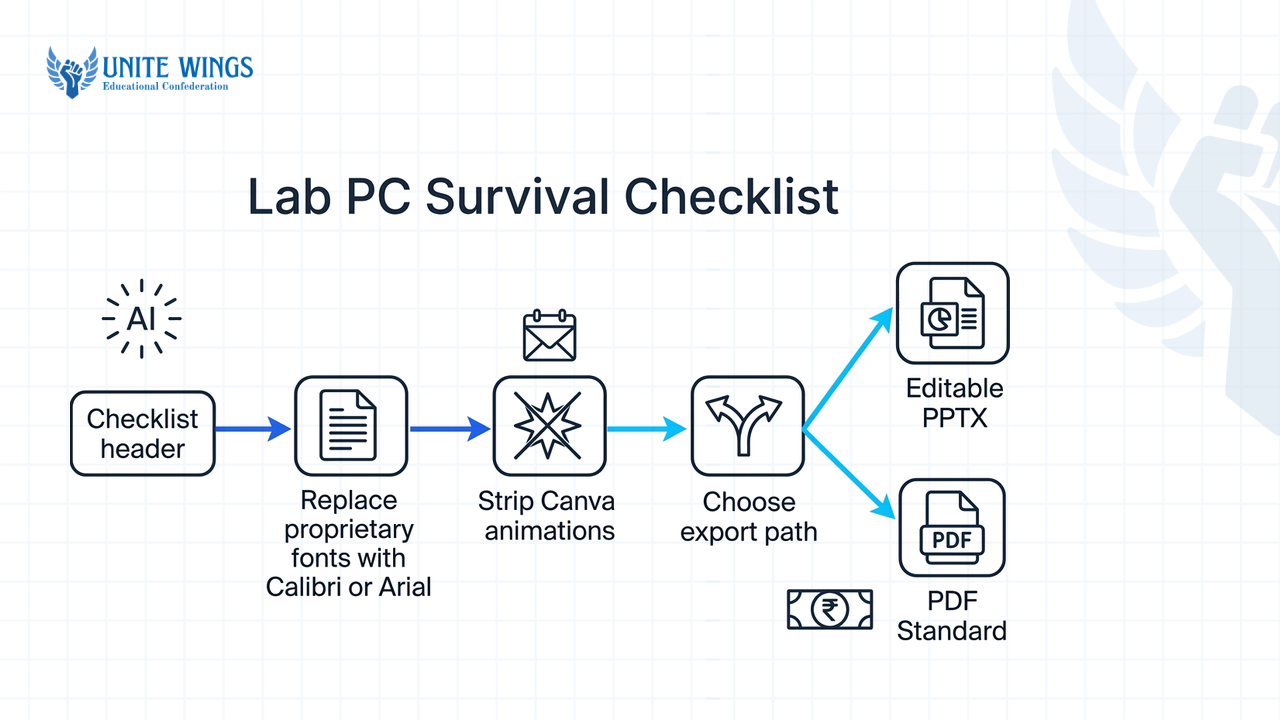
Lab PC Survival Checklist (Run this 30 minutes before your seminar)
- Replace proprietary fonts in 2 clicks: Click any text box in Canva, change the font to
Calibri,Arial, orTrebuchet MS, and click the "Change all" button at the bottom of the font panel. Every slide updates instantly. - Strip Canva animations: Click
Animateon the top toolbar and selectRemove all animations. If you want slide transitions, add native Fade transitions inside PowerPoint after exporting. - Choose your export path based on whether you need to edit text on the lab PC:
- Path A (Editable PPTX): Go to
Share > Download > File type: Microsoft PowerPoint (.pptx). Open the file on your own laptop in PowerPoint, fix any text bounding boxes that shifted by a few pixels, then go toFile > Options > Saveand check "Embed fonts in the file" before saving to your pendrive. - Path B (Zero-shift locked layout): If your slides have complex layered diagrams, background blends, or math equations that shift in PowerPoint, download from Canva as
PDF Standard. Open that PDF in Adobe Acrobat (or keep the PDF itself as your presentation file in full-screen view, Ctrl+L) and export to.pptxfrom Acrobat so the typography stays frozen in place.
- Path A (Editable PPTX): Go to
Always save three files in your pendrive folder and email them to yourself: the .pptx with embedded fonts, the flattened .pdf backup (which opens cleanly on any browser even if MS Office crashes), and a plain text file containing your Canva Live Present link in case the seminar room has fast Wi-Fi.
What slide layout works best for a 10-minute final year viva?
A 7-slide layout works best for a 10-minute final year viva: Title & Details (30s), Problem Statement & Research Question (90s), Literature Gap (90s), Methodology & Architecture Diagram (120s), Key Finding 1 with Chart (120s), Key Finding 2 & Implications (120s), and Conclusion & Acknowledgments (30s), backed by a hidden reserve slide for references and anticipated Q&A.
As noted in the 2025 College Project Expert viva guide, Indian university panels enforce a strict 10-minute presentation cutoff before the external examiner begins cross-questioning. A 2025 Thesis Analysis viva preparation guide shows that 30% to 40% of your total viva voce score is weighted toward that live Q&A session. Meanwhile, the 2026 Assignment Help Center academic guide puts the ideal speaking pace at 120 to 150 words per minute, or roughly 1 to 1.5 minutes per content slide. One 2025 Storyfiner guide adapts Guy Kawasaki's 10/20/30 rule down to 5 to 10 slides for a 10-minute academic slot, and Motivated Academic advises capping your final summary slide at 3 to 5 bullet takeaways so you never read paragraphs off the screen.
Use this minute-by-minute slide budget so the internal coordinator does not cut you off while you are still explaining your literature review:
| Slide | Slide Title & Visual Element | Time Allocation | Word Count to Speak (at ~130 wpm) |
|---|---|---|---|
| Slide 1 | Title & Details | 0:00 – 0:30 (30s) | ~65 words (State the problem domain in 1 sentence) |
| Slide 2 | Problem Statement & Research Question | 3 quantified pain points | 0:45 – 2:15 (90s) | ~195 words (Why current solutions fail and who suffers) |
| Slide 3 | Literature Gap | 4-row comparison table with inline [1]–[4] tags | 2:15 – 3:45 (90s) | ~195 words (Point to the exact column where existing papers fall short) |
| Slide 4 | System Architecture & Quick Flow Diagram | Vector block diagram | 3:45 – 5:45 (120s) | ~260 words (Trace input to output left-to-right across your blocks) |
| Slide 5 | Key Finding 1 with Chart | 5:30 – 7:30 (120s) | ~260 words |
| Slide 6 | Key Finding 2 & Implications | 7:30 – 9:30 (120s) | ~260 words |
| Slide 7 | Conclusion & Acknowledgments | 9:30 – 10:00 (30s) | ~65 words |
| Slide 8 (Hidden) | Reserve Slide A: Full IEEE Bibliography ([1] to [10]) | Q&A only | Flip to this only when asked "Which base paper did you follow?" |
To hide Slides 8 and 9 after exporting to PowerPoint, right-click their thumbnails in the left pane and select Hide Slide. During your 10-minute presentation, Slide 7 is your final screen; the moment the external examiner asks a deep technical question about your dataset or base paper, press 8 + Enter on the keyboard to jump straight to your hidden evidence slide. If your hands shake or you freeze when the external examiner interrupts you mid-slide, the Group Discussion and Speaking Masterclass gives you a clear structure for handling live questions and presenting under pressure.
Your 15-minute action plan for tonight
Do not spend the next three hours dragging text boxes around by hand or hunting for free icon packs. Follow this sequence right now:
- Minutes 0 to 3 (Clean your input): Copy only your 250-word abstract, your hardware/software tech stack, and your main result numbers into a blank Canva Doc. Delete all long paragraphs.
- Minutes 3 to 7 (Generate the base deck): Open a 16:9 Presentation and run the detailed Magic Design prompt from Section 2, or use Magic Switch inside your Canva Doc to generate a 7-to-10-slide draft.
- Minutes 7 to 12 (Add technical proof): Replace any decorative stock photos on Slides 3, 4, and 5 with an inline IEEE
[1]comparison table, a Quick Flow block diagram, and a 24pt results table. - Minutes 12 to 15 (Lock the fonts and export): Change one heading to
CalibriorArial, click Change all, download as.pptx, enable font embedding in PowerPoint (File > Options > Save), and save a.pdfbackup onto your pendrive alongside it.
Build studio-grade decks in half the time
If you want to go beyond basic templates and master Canva's full AI suite for college seminars, case competitions, and internship portfolios, join the Canva AI Masterclass. You will walk away with a reusable presentation workflow using Magic Design and Magic Write, plus a live project you can use for your next review.
Frequently asked questions
Where did the "Docs to Decks" button go in Canva in 2026?
Canva officially retired the standalone "Docs to Decks" button in 2026 when rolling out Visual Suite 2.0. To convert a document into slides today, open your Canva Doc and either click the + page-type dropdown to insert Presentation pages directly, or use File > Magic Switch > Transform into Presentation on a Pro or Education plan.
Is Canva AI completely free for college students to make presentations?
Canva Free gives every user a lifetime allowance of 200 AI credits across Magic Studio tools like Magic Design and Magic Write. Once you spend those 200 credits generating drafts or rewriting bullets, you must either build slides manually or upgrade to Canva Pro (roughly $15/month or $120/year; check Canva's site for current pricing).
Why do my Canva fonts look broken when I open the PPTX on my college computer?
Your fonts break because custom graphic fonts inside Canva are not installed on your college lab's Windows PC, forcing PowerPoint to substitute default fonts with different character widths. Prevent this by changing all fonts in Canva to Arial or Calibri before exporting, or by checking File > Options > Save > Embed fonts in the file inside PowerPoint.
How many slides should I make for a 10-minute B.Tech or MBA viva?
Make 7 visible slides for a 10-minute viva, plus a hidden reserve slide at the end for references and anticipated Q&A. Speaking at the standard academic pace of 120 to 150 words per minute gives you roughly 60 to 90 seconds per slide, keeping you inside the 10-minute external evaluation window without rushing your methodology or results.
Can Canva AI generate technical flowcharts and IEEE citations automatically?
No, Magic Design only generates slide layouts and general bullet points, not verified IEEE references or wired engineering schematics. You should build flowcharts manually on the slide using Elements > Shapes with Quick Flow enabled for auto-connecting arrows, and type inline bracketed numbers like [1] linked to a full bibliography on your final slide.
Newsletter
Stay updated with our latest news and insights.