How to Make a LinkedIn Banner in Canva Using AI for Freshers
Exact 1584x396 px safe-zone measurements so your profile photo never covers your text on mobile, plus 5 role-specific banner formulas made with Canva AI.
To make a LinkedIn banner in Canva using AI as a fresher, set your custom canvas to 1584 x 396 pixels, place all text in the right 60% of the canvas (past the 640px horizontal mark) so your profile picture never blocks it on mobile, and use Canva’s Magic Write to generate a 7-word value proposition based on your core technical skills rather than a missing job title. You can then clean up a casual hostel or campus photo using Canva’s Background Remover or free third-party cutout apps, align the cutout on the far right, and export the file as a PNG under 8 MB.
In short
- Canvas size: Create a custom 1584 x 396 px design in Canva (4:1 aspect ratio) and never use LinkedIn company page templates (1128 x 191 px).
- The mobile safe zone: Keep every letter of text and every skill icon to the right of
x = 640 pxand within the middle 60% vertically so mobile screens and your profile photo do not cut them off. - No job title fix: Drop words like "Unemployed" or "Aspiring Role" and use a 7-word skill-and-proof tagline generated via Canva Magic Write (e.g., "Python & SQL | Analyzed 50k+ rows").
- Free photo cutouts: Canva’s one-click Background Remover requires Canva Pro, so free-tier students should use the free background removal apps inside Canva's left-hand "Apps" tab or upload a pre-cut transparent PNG.
- Sharp export setting: Always download your final banner as a PNG (under the 8 MB limit) rather than a JPG so your text and tool logos do not compress and blur on LinkedIn.
What part of a 1584x396 LinkedIn banner gets covered by the profile picture on mobile?
According to 2026 sizing guides from MyFeedIn and Viral Brain, the LinkedIn personal banner is 1584 x 396 pixels (a 4:1 aspect ratio), and on mobile viewports, your circular profile photo shifts and scales to cover up to the left third or left half of the banner, while the screen crops roughly 20% off both the top and bottom edges. On a desktop monitor, that same circular photo only covers the bottom-left fifth of the canvas, or roughly 200 pixels of width. Keeping all text, logos, and cutouts in the right 60% of the canvas (to the right of x = 640 px) and inside the vertical center (y = 80 px to y = 316 px) prevents mobile overlap.
| Viewport / Element | Horizontal area covered or cropped | Vertical area covered or cropped | Safe zone coordinate rule |
|---|---|---|---|
| Desktop view | Left fifth (~0 to 200 px) in the bottom-left corner | Bottom-left corner only | Keep bottom-left clear of text |
| Mobile view (App & Web) | Left third to left half (0 to 640 px) | Top 20% (~80 px) and bottom 20% (~80 px) | Place critical copy right of x = 640 px, between y = 80 px and y = 316 px |
| Recommended text box | Right 60% (approx. 940 to 1000 px wide) | Central 60% (approx. 240 to 250 px tall) | Draw a temporary guide box at x = 640, y = 80 before designing |
What most students get wrong: You pick a centered template in Canva, type your name and branch right in the middle, and check it only on your laptop. When an HR recruiter from an IT services firm or a startup founder opens your profile on their phone while commuting, your face sits right on top of the first three words of your tagline.
The second mistake is grabbing a "LinkedIn Banner" template that was actually built for a LinkedIn Company Page (which uses 1128 x 191 pixels or 1512 x 256 pixels, per 2026 data from FixPhotoLab) or an outdated blog template at 1400 x 425 pixels. Uploading the wrong aspect ratio forces LinkedIn to stretch and compress your image, turning crisp text into blurry pixels.
Set up your safe-zone overlay in Canva before you touch a single font or template:
- Open Canva, click Create a design in the top right, select Custom size, and type 1584 for Width and 396 for Height (make sure the unit is set to
px). - Press
Ron your keyboard to spawn a rectangle on the canvas. - Click Position in the top toolbar, set the width (
W) to 640 px, the height (H) to 396 px, and align it to the Left and Top edges (X = 0,Y = 0). Colour this box bright red and set its transparency to 40%. - Spawn two more thin rectangles (
W = 1584 px,H = 80 px), placing one flush against the very top edge and the other flush against the very bottom edge. - Lock all three red shapes using the padlock icon. The clear space remaining on the right side is your exact 2026 mobile- and desktop-safe zone. Once your design is finished, remove the red boxes before downloading.
What should a fresher write on their LinkedIn banner if they have no job title yet?
Freshers without a full-time corporate title should write a concise, skill-focused value proposition combining their target domain, specific tools (such as Python, SQL, or Figma), and a concrete academic or project proof point. According to a 2026 career guide by UseFacet, freshers should avoid writing status declarations like "Unemployed" or generic "Aspiring Role" labels on their banners, and instead focus on their education, field of study, and core skill keywords. While a 2026 best-practices guide from Magier notes that some entry-level candidates use a target role tag (such as "Aspiring Software Engineer | Python & React"), replacing the word "Aspiring" with a measurable project or internship output makes you look like a builder rather than a beggar.
Why does this distinction matter for your bank account? According to 2026 compensation data from JoinSaarthi and Hyring, mass IT services firms in India pay entry-level freshers between ₹3.5 and ₹4.5 LPA (with TCS NQT standard Ninja/IT analyst tracks starting at ₹3.36 LPA and Digital/ high-performer tracks scaling to ₹4.5–7 LPA), whereas product companies and specialized AI, data science, or cloud roles pay ₹8 to ₹15+ LPA. For digital marketing freshers, a 2026 report by SkillCure Academy places general entry-level packages at ₹2.5 to ₹3.6 LPA, while specialized performance marketing roles pay ₹3.5 to ₹6 LPA. Remember that in Indian campus and off-campus offers, your actual monthly in-hand take-home pay is typically 65% to 75% of the stated CTC after PF, gratuity, and variable components. Recruiters hiring for those ₹8+ LPA product roles or ₹6 LPA performance marketing roles scan your profile in five seconds on LinkedIn Recruiter or Naukri redirects; a banner that names your exact stack and proof of work tells them immediately which salary band you belong in.
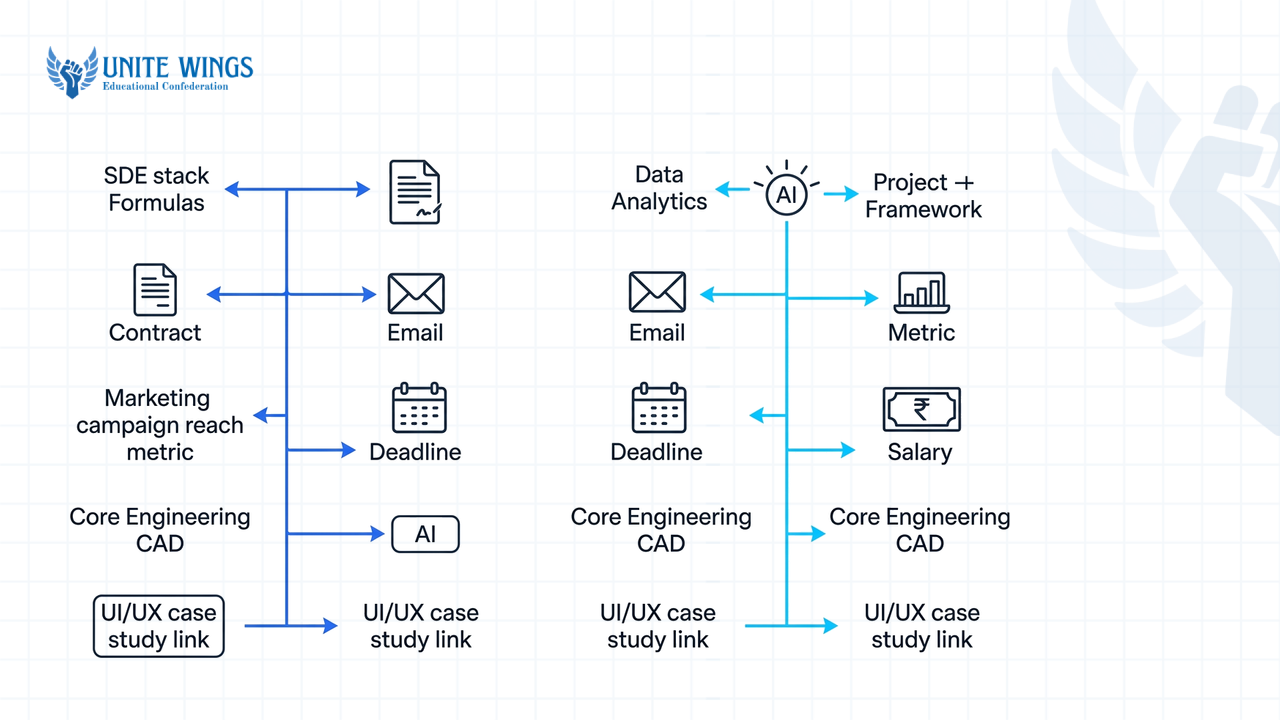
Copy and adapt one of these five stream-specific tagline formulas for the right side of your banner:
- SDE / CS / IT Fresher:
[Primary Stack] + [Build Proof] + [DSA / GitHub metric]Copy-paste example:Java, Spring Boot & React | Built 3 Full-Stack Apps | 400+ LeetCode Problems - Data Analytics / Data Science Fresher:
[Core Tools] + [Dataset/Project Scale] + [Business Domain]Copy-paste example:SQL, Python & Tableau | Analyzed 100k+ E-Commerce Rows | B.Tech 2026 - MBA / Marketing / Growth Fresher:
[Marketing Channel] + [Tools] + [Campaign/Internship Metric]Copy-paste example:Performance Marketing & SEO | Meta Ads & GA4 | Scaled College Fest Reach by 40k - Core Engineering (Mechanical / ECE / Civil / Electrical) Fresher:
[CAD/Simulation Software] + [Hardware/Lab Project] + [Certification/Gate/SAE]Copy-paste example:SolidWorks, ANSYS & AutoCAD | SAE Baja Powertrain Lead | B.Tech Mech '26 - UI/UX & Product Design Fresher:
[Design Tools] + [Deliverable Type] + [Portfolio URL]Copy-paste example:Product Design & Research | Figma & Prototyping | 4 End-to-End Case Studies Below
Add one small sub-line directly beneath your tagline with your graduation month/year and a clean contact handle or portfolio link (for example, Graduating May 2026 | github.com/rahul-dev). Do not put your phone number or full home address on a public banner.
How do you use Magic Write to generate a 7-word value proposition for your target role?
To generate a 7-word value proposition using Canva AI, select any text box inside your 1584 x 396 banner canvas, click the Magic Write (sparkle) icon on the floating toolbar or press the / key to open Quick Actions, and submit a constrained prompt that specifies your exact word count, target role, and top two technical tools. According to a 2026 guide from Dupple, Magic Write accepts up to 1,500 words of input and generates up to 2,000 words per request, which means an unconstrained prompt will return a bloated paragraph that will never fit inside your safe zone.
Before you start prompting, check two 2026 platform rules. First, if the Magic Write sparkle icon does not show up on your screen, your college email admin or personal account settings may have generative AI switched off; as reported by PetaPixel in 2026, Canva allows users and workspace admins to toggle generative AI features (including Magic Write, Magic Design, and Magic Expand) under Profile > Settings > Permissions. Second, a 2026 review of Canva AI terms by Prompt Architects notes that Canva AI does not guarantee unique output or copyright exclusivity, meaning two students typing "Write a LinkedIn tagline for a coder" can get nearly identical lines.
Follow these steps to force Magic Write to give you sharp, non-generic banner copy:
- Press
Ton your Canva canvas to drop a text box inside the right-hand safe zone (x > 640 px). - Click the Magic Write sparkle icon directly above the text box.
- Paste this exact prompt structure, swapping the bracketed parts for your own details:
Write 5 options for a 7-word LinkedIn banner value proposition for a final-year Indian college fresher targeting [Target Role, e.g., Data Analyst] roles. Include the tools [Tool 1, e.g., SQL] and [Tool 2, e.g., Power BI] and mention [1 proof point, e.g., 3 end-to-end dashboard projects]. Use plain nouns and numbers. No buzzwords, no exclamation marks, and do not use the word "aspiring". - Review the five generated lines, delete the four weakest ones, and manually edit the winner so the font size sits between 28 pt and 42 pt (readable on a 6-inch phone screen without squinting).
If you want hands-on practice combining Magic Write with full visual layouts for pitch decks and portfolio graphics, the Canva AI Masterclass walks through these exact workflows step by step.
How do you turn a casual phone photo into a clean cutout using Canva AI?
You can turn a casual phone photo into a studio-style banner cutout by uploading your image to Canva, clicking Edit photo in the top toolbar, and selecting BG Remover to strip the background in one click, or by using free background-remover apps inside Canva’s Apps tab if you are on a Canva Free account. According to 2026 Canva documentation and PixelBin, Canva’s native Background Remover is an AI-powered assistive tool that detects the foreground subject and deletes the background automatically, and because it is classified as an assistive editing tool rather than a generative AI tool, it stays active even if you disable generative AI in your privacy settings.
The catch for most college students is the paywall. As confirmed by Bring Your Own Laptop and Rewarx in 2026, Canva's one-click BG Remover requires a paid Canva Pro subscription (or an active 30-day free trial). Do not pay for a monthly subscription just to fix one LinkedIn banner photo.
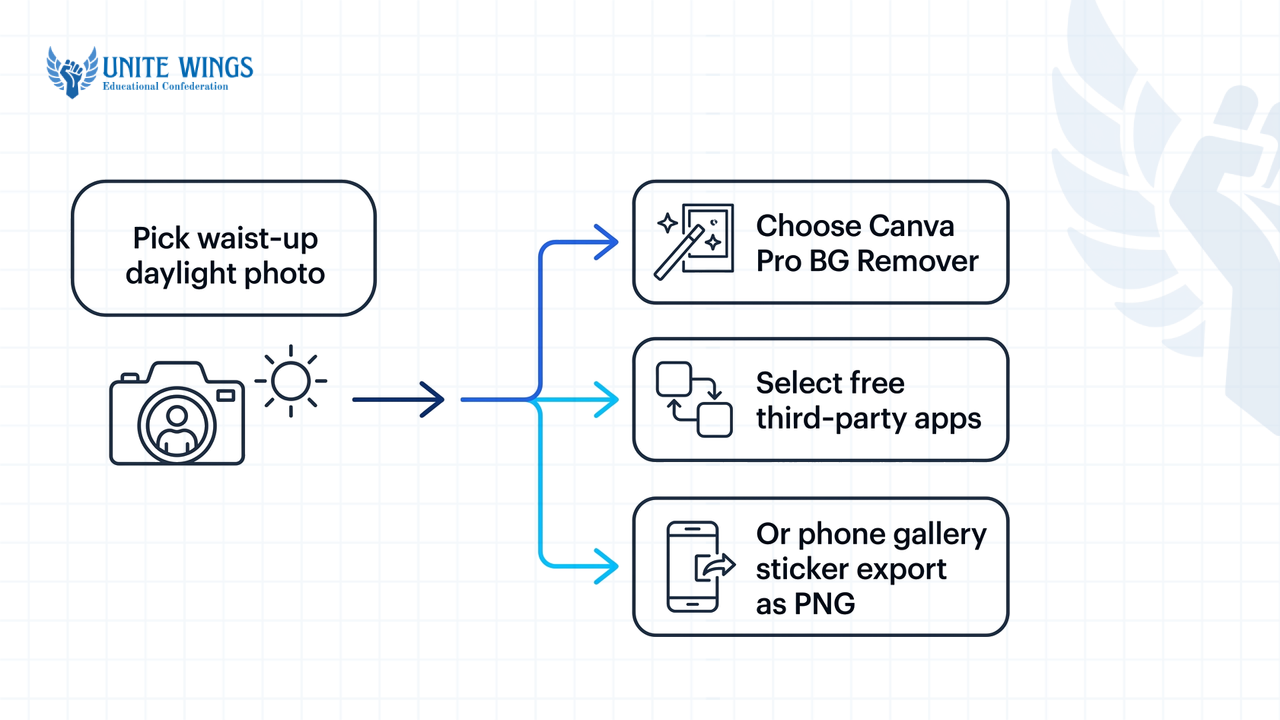
Use this step-by-step workflow to get a crisp cutout from a hostel corridor or college fest photo on either plan:
- Pick the right source photo: Choose a waist-up photo taken in daylight where your shoulders are not cut off by the edge of the frame and no one else's arm is crossing behind your neck. You do not need a blazer; a clean solid-coloured shirt or kurta works.
- If you have Canva Pro (or a free trial): Upload the photo to Canva, place it on the canvas, click Edit photo, and click BG Remover. If a stray bit of hostel curtain remains near your ear, click the sliders icon next to BG Remover and use the manual Erase brush to clean the edge.
- If you are on Canva Free (Zero-cost workaround):
- Option A (Inside Canva): Click Apps on the far-left black navigation bar inside the Canva editor, type
background removerinto the search bar, and open one of the free third-party apps listed in the marketplace that offer free daily credits. Select your uploaded photo and click remove. - Option B (External upload): Strip the background using your phone's built-in photo cutout feature (long-press the subject on iOS or modern Android gallery apps and save as a sticker/PNG) or a free web cutout tool, save it as a transparent PNG, and drag that PNG straight into your Canva uploads tab.
- Option A (Inside Canva): Click Apps on the far-left black navigation bar inside the Canva editor, type
- Add contrast and anchor the bottom edge: Once your cutout is on the canvas, you can adjust the contrast and sharpness to make your photo look clear and professional. Position your cutout on the right-hand side and make sure the bottom of your torso touches the bottom edge of the canvas so you do not look like a floating torso.
Wait to decide whether you even need a photo cutout on your banner. If your circular LinkedIn profile picture on the left is already a clear, high-resolution headshot, putting a second cutout of your face on the right side of the banner is redundant unless you are in a client-facing role like marketing, sales, or content creation.
What are the best LinkedIn banner layouts for software, data, and marketing freshers?
The most effective LinkedIn banner layouts for freshers use a dark or high-contrast background on the full 1584 x 396 canvas, leave the left 640 pixels empty or subtly patterned, and organize role-specific proof (code and stack badges for software, chart motifs and tool icons for data, or bold typography and campaign metrics for marketing) across the right 940 pixels. Based on 2026 layout guides from MyFeedIn, ProfileTree, and Canva’s template library, here is how to build the right layout for your stream without looking like every other student using the top free template.
| Stream | Background & colour palette | Visual elements (Right 60% only) | Typography & layout rule |
|---|---|---|---|
| Software (SDE / Full-Stack / Cloud) | Dark tech-themed background or clean code-gradient pattern | Tech stack icons, clean code line vectors, or Github highlights | Stack icons, clean code lines, or Github highlights strictly on the right 60% of the canvas |
| Data (Analytics / Data Science / AI) | Minimalist analytics grid patterns or dark navy/light grey background | Tool badges (SQL, Tableau, Python) and data-driven value statements | Value statements and tool badges positioned in the top-right sector |
| Marketing / MBA / Design | Bold color blocks and personal branding color palettes | Clean right-aligned cutout headshot, campaign metrics, or social media strategy icons | Clean minimalist typography focusing on campaign metrics or headshot cutout |
Layout 1: The SDE / Tech Builder Layout
In Canva’s Elements tab, search for dark tech-themed graphics or set a clean code-gradient background. Place your 7-word headline in the right 60% of the canvas. Directly below it, search Canva Elements for official flat icons of your top technologies (like Python), and space them neatly next to your GitHub link or highlights, keeping everything clear of the mobile overlap zone on the left.
Layout 2: The Data Analyst / Data Scientist Layout
Recruiters hiring for data roles hate messy visual clutter because a data analyst's job is making complex numbers readable. Use a dark navy (#111827) or clean light grey (#F1F5F9) canvas. In the safe zone (x = 680 px to 1500 px), create two clean visual columns. In the middle-right column (x = 680 px to 1150 px), put your Magic Write value proposition and your core stack text (SQL | Python | Power BI | Excel). On the far right (x = 1180 px to 1520 px), draw a subtle rounded card showing a mini dashboard wireframe or a single sharp project stat from your capstone project (for example, a box reading Capstone: 92% Churn Prediction Accuracy on 70k Telecom Records).
Layout 3: The Marketing / MBA / Creative Layout
As noted in 2026 marketing design workflows by ProfileTree, marketing banners work best when they use bold colour blocks, minimalist typography focused on campaign metrics, or a right-aligned cutout. Split your background using two brand colours: a muted dark shade on the left 640 pixels so your circular profile photo pops, and a high-contrast accent block on the right. Place your 7-word headline at x = 660 px and anchor your clean photo cutout on the far right (x = 1280 px to 1540 px), with small social strategy icons or tool tags (Meta Ads, Semrush, HubSpot, Canva) arranged neatly between the text and your shoulder.
Once your layout is locked and you have deleted your red safe-zone guide boxes, export and upload it without losing quality:
- Click Share > Download in the top right corner of Canva.
- Set File type to PNG. As confirmed by TinyPNGNow and MyFeedIn in 2026, LinkedIn accepts JPG or PNG files up to 8 MB, and PNG is required for text-heavy graphics to keep letter edges sharp.
- Follow the standard upload path outlined by Supademo (which also recommends a YouTube walkthrough if you want to watch the exact button clicks): open your LinkedIn profile page, click the camera/pencil icon on the top background banner area, select Upload single photo, choose your exported 1584 x 396 PNG file, adjust positioning if needed, and click Apply.
- Immediately open the LinkedIn app on your smartphone to verify that your profile circle does not touch the first letter of your tagline.
What to do next
A crisp banner grabs a recruiter's attention for the first two seconds, after which their eyes drop immediately to your LinkedIn headline, your "About" section, and your featured project links. Here is how to lock in the rest of your profile this week:
- Today (25 minutes): Open Canva, set up the
1584 x 396 pxcanvas with the red640 pxleft-hand safe-zone block, generate your 7-word tagline with Magic Write, export as PNG, and test the live upload on your mobile phone. - Within 48 hours: Match your LinkedIn text headline (the line underneath your name) to the exact same tools and target role shown on your new banner so LinkedIn Recruiter keyword searches index your profile for those skills.
- This weekend: Pin one tangible proof of work (a GitHub repository README, a live Tableau/Power BI dashboard link, or a 5-slide Canva case study PDF) inside your LinkedIn Featured section so anyone who reads your banner tagline can verify your claim in one click.
Fix your entire LinkedIn profile in one sitting
If you want to go beyond the banner and set up your headline, About section, Featured proof, and recruiter search keywords together, join the LinkedIn Masterclass. You will walk away with a fully rewritten, recruiter-searchable LinkedIn profile and a simple weekly routine that brings inbound internship and fresher interview messages.
Frequently asked questions
What is the exact LinkedIn banner size in Canva for 2026?
The exact LinkedIn personal profile banner size in 2026 is 1584 x 396 pixels, which is a 4:1 aspect ratio. When setting up your file in Canva, select "Custom size" and enter 1584 px width by 396 px height rather than choosing a generic "LinkedIn Banner" template, which may use company page dimensions (1128 x 191 px).
Why does my LinkedIn banner look blurry after uploading from Canva?
Your LinkedIn banner looks blurry either because you downloaded it as a compressed JPG instead of a PNG, or because you designed it at an outdated canvas resolution like 1400 x 425 pixels. Always build on a 1584 x 396 pixel canvas and export as a standard PNG file under LinkedIn's 8 MB file size limit.
How do I keep my LinkedIn profile picture from covering my banner text on mobile?
Keep all text, logos, and icons in the right 60% of the canvas, starting to the right of the x = 640 px mark, and keep them away from the top 80 pixels and bottom 80 pixels. On mobile phones, the circular profile photo scales up to cover roughly the left third to left half of the banner.
Can I use Canva AI Background Remover for free as a student?
Canva’s built-in one-click Background Remover requires a paid Canva Pro subscription or an active free trial. If you use Canva Free, you can open the "Apps" tab on the left toolbar inside Canva and search for free third-party background remover apps, or cut out your photo using your phone's gallery sticker tool and upload it as a transparent PNG.
What should I put on my LinkedIn banner if I am a fresher with no experience?
Write a concise value proposition showing your target field, technical tools, and a concrete academic or personal project metric (for example, "SQL, Python & Tableau | Built 4 End-to-End Retail Dashboards"). Never write "Unemployed" or "Aspiring Role" on your banner.
Why is Magic Write not showing up in my Canva account?
If the Magic Write sparkle icon is missing when you select a text box, generative AI permissions are turned off in your account settings or restricted by your college domain administrator. Go to your Canva homepage, click Profile > Settings > Permissions, and switch on generative AI features, or log in using a personal Gmail account.
Newsletter
Stay updated with our latest news and insights.