
How to Build a Portfolio on Canva for Freshers (Free Website Link)
Publish a live, mobile-responsive portfolio link on a free .my.canva.site domain in two hours, complete with a 5-section layout for non-tech freshers.
You can publish a free, live portfolio website directly from Canva by selecting a Website template, filling in five project sections, and publishing to a .my.canva.site domain at zero cost. According to CodingClave, recruiters hiring freshers in India spend 6 to 7 seconds scanning a resume, so a live link that opens immediately without a Google Drive login request gets your work seen before they move to the next applicant.
In short
- Pick a dedicated "Website" template in Canva (never a Presentation or "Link in Bio" template) so your site scrolls smoothly and gets a customizable
.my.canva.siteURL. - Canva Free lets you publish up to 5 live websites and gives you roughly 50 AI credits per month to write case studies with Magic Write and generate mockups.
- Replace blank work history with 3 to 5 college society campaigns, academic capstones, or self-directed redesigns structured into 4-part client-style case studies.
- Group related text and images (
Ctrl + Gon Windows,Cmd + Gon Mac) and turn on "Resize on mobile" before publishing so your site does not scramble on a hiring manager's phone. - Paste your published URL as readable plain text in your resume header (
yourname.my.canva.site) so Applicant Tracking Systems (ATS) parse it without errors.
How do you publish a Canva design as a free clickable website link?
To publish a Canva design as a free clickable website link, open your finished design on a Website template, click Share in the top-right corner, select Website, and click Publish Website. Choose Free Canva domain, type your name as the subdomain, toggle Resize on mobile ON, and hit Publish to get a live .my.canva.site URL.
Before you design a single slide, you must pick the right canvas. What most students get wrong is building their portfolio inside a standard 16:9 Presentation template because they are used to making college seminar decks. According to Ninefolio and Canva Documentation, publishing a Presentation template forces your site to open with slide-deck arrow controls instead of a smooth, continuous vertical scroll. A second trap: some tutorials tell you to use mobile-first or "link-in-bio" templates, but Canva routes those strictly to a generic .canva.link URL. Starting from Canva's portfolio website builder is the only way to get a full .my.canva.site subdomain with custom subpaths.
Follow these exact steps to get your live link on the free tier:
- From the Canva home screen, search "Portfolio Website" to open a blank or pre-built multi-page website layout.
- Build your sections as separate pages top-to-bottom; Canva stitches individual pages into one long scrolling webpage when published.
- Click Publish Website in the top-right menu bar (or go to Share and select Website).
- Check the box for Resize on mobile in the publishing options.
- Select Free domain and click Continue. According to Canva's free publishing guide, Canva Free users can publish up to 5 active websites on
.my.canva.sitedomains without paying for hosting. - Set your subdomain prefix once (for example,
riya-sharma.my.canva.site) and customize the URL slug at the end (such as/marketing-portfolioor/ui-ux). - Click Edit settings to upload a favicon, write a clean page title (like "Riya Sharma | Social Media & Content Portfolio"), and add an SEO description so your link previews cleanly.
- Click Publish and copy the live link.
One trade-off to know: every site on the Free plan includes a mandatory "Designed with Canva" footer containing privacy terms. Ignore the random blog hacks claiming you can crop or cover it; Canva's official documentation confirms that removing the footer or connecting a custom .com or .in domain (Canva domain guide) requires Canva Pro (roughly $15/month, per Fast.io) or a verified Canva for Education account. For Indian internship applications, a clean yourname.my.canva.site URL with the standard footer is completely acceptable.
What 5 sections should a fresher include when they have zero job experience?
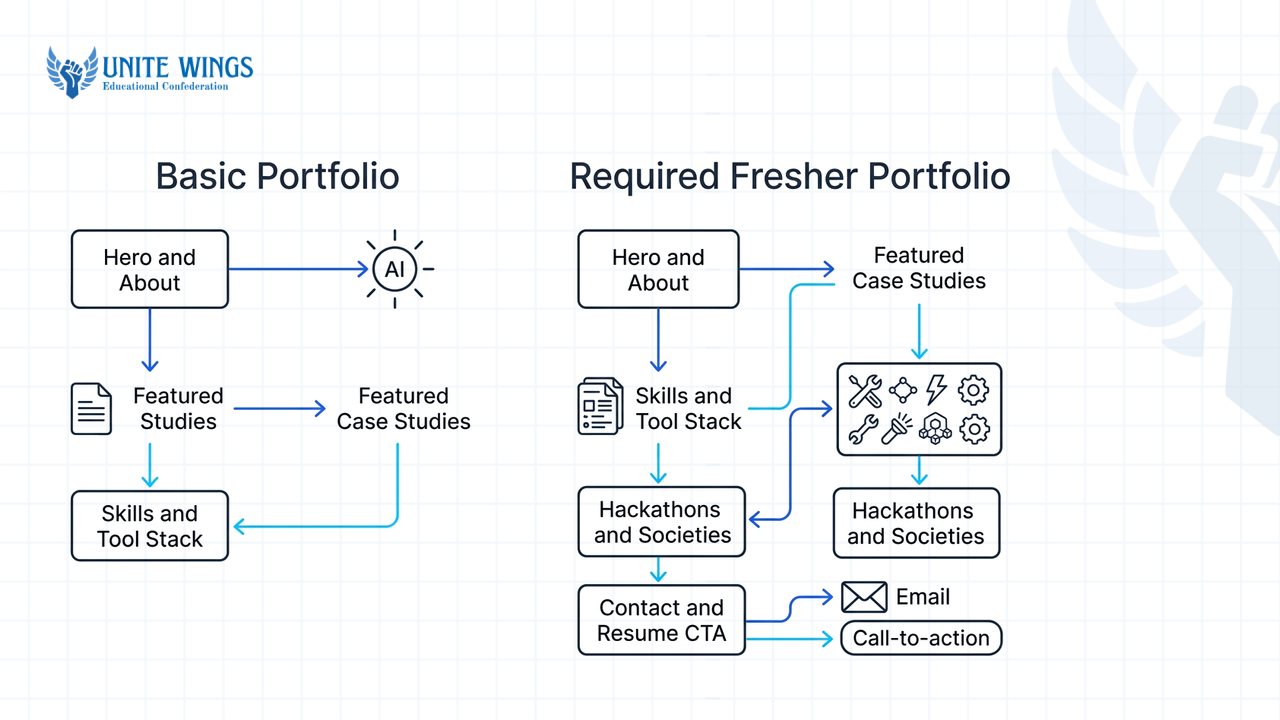
A fresher portfolio with zero job experience needs five exact sections: a Hero introduction headline, 3 to 5 featured project case studies, a categorized skills and tools list, a certifications or hackathons block, and a contact footer with a downloadable resume PDF. Career guides from SitesPlaced and Foliobuild confirm that 3 to 5 strong projects beat a cluttered page of ten weak assignments.
When you are figuring out how to build a portfolio on Canva for freshers, do not copy templates made for senior freelancers because those have sections for Client Testimonials, 5+ Years Experience, and Pricing Packages that will make your site look empty. Instead, treat each page of your Canva Website template as one of the five wireframed blocks below. According to Portfoliofy and Folitox, freshers can substitute paid work with academic capstones, college fest campaigns, hackathon submissions, or self-directed redesigns.
| Page / Section | What goes on the Canva page | Copy-paste wireframe example (for a non-coding fresher) |
|---|---|---|
| Page 1: Hero & About | Left side: 1-line role headline, 2-sentence bio, and two buttons ("View Projects" + "Download Resume PDF"). Right side: clean headshot or workspace visual. | Headline: "Final-year BBA student turning audience research into high-retention Instagram Reels and email flows." Bio: "Head of Promotions for Enactus Gargi (2025–26). Looking for a Social Media or Content Marketing internship where I can own campaign execution." |
| Pages 2–4: Featured Case Studies (3 to 5 projects) | One project per page (or 2 side-by-side cards). Each card shows a visual mockup on the left and a 4-bullet breakdown on the right: Problem, Role/Tools, Execution, and Result. | Project 1 (College Society): Sponsorship Deck & Instagram Launch for Annual Fest. Project 2 (Mock Redesign): UX & Copy Audit of Zomato's Student Pass onboarding screen. Project 3 (Academic Capstone): 30-day SEO content calendar + 3 sample blog posts for a D2C skincare brand. |
| Page 5: Skills & Tool Stack | 3 columns grouped by function (not meaningless percentage bars like "Canva 90%"). Pair each tool logo with what you actually build in it. | Content & Copy: Long-form SEO blogs, Instagram carousel scripts, Meta ad hooks. Design & UI: Canva, Figma (wireframing & prototyping), CapCut. Analytics & Ops: Google Analytics 4, Notion content calendars, Mailchimp. |
| Page 6: Hackathons, Societies & Proof | 2 to 3 horizontal badges or short cards showing competitions, positions of responsibility (PORs), or verified coursework with links to the output. | Unstop Case Competition: National semi-finalist (top 40 of 1,200 teams) for Boat lifestyle go-to-market pitch deck. Google Digital Garage: Fundamentals of Digital Marketing (2025)—applied keyword clustering to Project 3. |
| Page 7: Contact & Resume CTA | Large, high-contrast closing banner with clickable text links for Email, LinkedIn, and a Google Drive link set to "Anyone with the link can view" for your PDF resume. | CTA Header: "Available for immediate 3–6 month internships (Remote / Bengaluru / Delhi NCR)." Links: riya.sharma@email.com | linkedin.com/in/riyasharma | [Download 1-Page Resume PDF] |
Why this 5-section blueprint works when you have no internships: it stops you from apologizing for being a student. If you handled PR for your college's cultural fest, you had a budget, a deadline, a target footfall, and deliverables, so that is a campaign. If you haven't joined any societies, pick an app or D2C brand you use every day, find one broken user flow or weak social media week, and create the fixed version as a self-directed case study. If you do not have 3 solid projects yet, our AI Portfolio Sprint walks you through picking a real problem, building the proof with AI, and publishing it in one sitting.
How do you use Canva AI to turn college projects into visual case studies?
You can use Canva AI's Magic Studio to turn rough college assignments into visual case studies by highlighting bullet points and running Magic Write to draft a 4-part narrative, then using Dream Lab or Magic Media to generate device mockups and diagrams. According to Fast.io, Canva Free gives you roughly 50 AI credits per month, which is plenty for 3 to 5 projects if you prompt carefully.
Most student portfolios fail because they dump a raw Google Doc link or a screenshot of an ugly slide deck with the caption "Marketing project for 5th semester." Recruiters won't click out to a 20-page PDF. Instead, structure every project directly on your Canva page using a 4-part case study narrative: 1) The Problem, 2) Your Role & Tool Stack, 3) Key Decisions, and 4) Measurable Result or Takeaway.
Here is how to use Canva AI for students/freshers (TisaTech and Kids AI Tools) to write and visualize those four parts without burning through your 50 monthly free credits:
- Draft your raw notes on the page first: Drop a text box onto your Project page and type ugly, honest bullets about what you did. Example: "Did Instagram for college tech fest. Nobody was registering through the bio link. I changed the poster style to 3-slide carousels showing prize money on slide 1, used Canva and Meta Business Suite, got 420 registrations in 10 days."
- Turn bullets into a 4-part case study with Magic Write: Select the text box, click the Magic Write icon (the sparkle pen floating below the box), choose Custom prompt, and paste this exact instruction:
Rewrite these notes into 4 short bullet points under 20 words each labeled: Problem, My Role & Tools, What I Changed, and Result. Keep all numbers exact and use plain, direct language. - Condense overflowing text: If your text box looks too tall next to your project image, highlight it, click Magic Write -> Shorten. Canva will trim the word count while keeping the metrics intact so your desktop columns stay even.
- Generate visual context with Magic Media or Dream Lab: If your project is a content strategy, copywriting sample, or UX research doc that looks boring as plain text, open the left sidebar, click Apps -> Magic Media (or Dream Lab, powered by Leonardo.ai on newer workspaces). Type a prompt like
"Flat vector flowchart diagram showing a 3-step email onboarding sequence on a cream background, minimal UI style"or"Minimalist smartphone mockup on a wooden desk with blank screen"to create a visual container for your screenshots. - Drop screenshots into Canva Frames: Never paste uncropped laptop screenshots with your browser tabs showing. Go to Elements -> Frames, search for "Laptop" or "Smartphone," drag the frame onto your page, and drag your project screenshot inside it.
If you want hands-on practice combining Magic Design and Magic Write across decks, social assets, and portfolio cards, check out the Canva AI Masterclass.
Watch your 50 free AI credits
Canva Free gives you roughly 50 Magic Studio credits per month. Text edits in Magic Write use 1 credit per click, while image generations in Dream Lab or Magic Media consume credits much faster if you keep regenerating. Write all your rough project notes in one go, run Magic Write once per project (4 to 5 credits total), and use standard free Elements -> Frames for device mockups before spending credits on AI images.
How do you fix mobile responsiveness issues on a Canva portfolio website?
You fix mobile responsiveness issues on a Canva portfolio website by selecting related text and image elements and pressing Ctrl + G (Cmd + G on Mac) to group them, removing any overlapping text box borders, and enabling Resize on mobile in the Publish menu. Because Canva stacks elements vertically on phones, ungrouped multi-column layouts will scramble out of order.
Imagine a founder or HR manager opening your cold DM on LinkedIn from their phone between meetings. They tap your .my.canva.site link, and Project 1's heading appears above Project 2's screenshot, followed by Project 1's description at the bottom of the screen. According to Canva's responsive website documentation and Ninefolio, this happens because Canva converts wide desktop pages into mobile views using automated vertical reflow that reads top-to-bottom and left-to-right. If two elements sit side-by-side without being grouped, or if invisible text box borders overlap by even a few pixels, Canva guesses the stacking order and usually guesses wrong.
Run this 5-step mobile check before you send your link to a single recruiter (MadeByMelody):
- Group every project card as one unit: If your case study has a project title, a 4-bullet text box, and a "View Live File" button stacked on the right side of a mockup, drag your cursor over those text elements and press
Ctrl + G(Windows) orCmd + G(Mac). Grouping locks their relative vertical order so the title never separates from its description on mobile. - Pull back overlapping bounding boxes: Click on every text box and image to inspect its purple border. Even if the visible words don't touch a photo, a wide empty text box border overlapping an image frame causes cramped horizontal shifting on small screens. Drag the side handles inward so no two purple borders cross.
- Upload videos to Canva's internal storage first: If you are showing a 10-second screen recording of a Figma prototype or an Instagram Reel you edited, do not drag it straight from your phone camera roll onto the canvas right before publishing. As Ninefolio notes, media files must finish uploading and processing inside Canva's Uploads tab first, or they can render as broken grey placeholder boxes on mobile browsers.
- Use the editor's Mobile Preview toggle: Click Preview in the top navigation bar and switch from the Desktop monitor icon to the Mobile phone icon. Scroll from top to bottom. If a two-column section reads "Heading A -> Heading B -> Body A -> Body B" on the phone preview, go back to the editor and group Heading A with Body A (
Ctrl + G), and Heading B with Body B. - Lock in "Resize on mobile" and test on a real phone: When you click Publish Website, confirm the Resize on mobile checkbox is ticked. Once live, open the URL on your own smartphone inside WhatsApp or the LinkedIn app's built-in browser to verify font sizes and button taps.
Where should you put your Canva portfolio link on LinkedIn and your resume?
Place your Canva portfolio link in your resume's top contact header as readable plain text (Portfolio: yourname.my.canva.site) right next to your email, and add it to two spots on LinkedIn: the Contact info menu (under "Portfolio" website type) and the Featured section as a visual preview card (Linkfolio).
Having a live portfolio does nothing if an Applicant Tracking System (ATS) strips the link out or a recruiter has to hunt through page two of your CV to find it. What most freshers get wrong on resumes is hiding the URL behind an anchor word like "Click here to view my portfolio" or dropping a raw, unedited Canva share link that looks like canva.com/design/DAF8x9.../view. First, an Edit/View share link opens the sluggish Canva editor interface instead of your published website. Second, according to Linkdfolio's resume guide, ATS software parses plain-text headers best, and if a hiring manager prints your resume or views it in a plain-text parser, hyperlinked words without the visible URL string become unclickable dead text.
Set up your resume and LinkedIn placements in ten minutes using these exact steps:
- Format your resume header for both ATS and human eyes: Put your portfolio link in the top contact/header block, right next to your email and LinkedIn profile. Write out the clean domain in plain text and attach the hyperlink directly to that text:
+91 98XXX XXXXX | riya.sharma@email.com | linkedin.com/in/riyasharma | Portfolio: riyasharma.my.canva.site - Link specific project bullets on your resume: Under your Projects section on the resume, add a 2-word plain-text pointer next to the project title (for example,
See visual mockups on portfolio -> Project 2) so the 6-second resume scan leads straight to your Canva page. - Add the link to LinkedIn Contact Info (MySeera): Open your LinkedIn profile -> click Contact info right below your headline -> click the pencil Edit icon -> scroll to Websites and click + Add website -> paste your
https://yourname.my.canva.siteURL -> select Portfolio from the category dropdown -> click Save. - Pin it to your LinkedIn Featured section for a thumbnail card: On your main LinkedIn profile page, click Add profile section -> open Recommended -> click Add featured -> click the + icon -> select Add a link -> paste your
.my.canva.siteURL. Because you filled out the website title and description in Canva's publish settings earlier, LinkedIn automatically pulls a rich preview card with a thumbnail image right below your About section where recruiters scroll first.
Your action plan to get your link live
Do not spend three weeks tweaking font pairings and color palettes while internship listings close. Set a timer and ship version one using this schedule:
- Step 1: Gather 3 past pieces of work including one college society campaign or event, one class assignment, and one rough audit of a brand you want to work for. Write four raw bullet points (Problem, Role/Tools, Action, Result) for each in a notepad.
- Today (Hour 2): Open a dedicated Canva Website template, delete any sections beyond the 5-section fresher blueprint, and use Magic Write (mindful of your 50 monthly free credits) to tighten your project bullets.
- Step 3: Press
Ctrl + Gon every project card's text block, check the Mobile Preview, and hit Publish Website onto a free.my.canva.sitedomain with Resize on mobile enabled. - Step 4: Paste the plain-text URL into your resume header and pin the preview card to your LinkedIn Featured section before sending your next internship applications.
Build proof even if you have zero projects right now
Staring at a blank Canva template because you don't have 3 strong projects to put in it? Join the AI Portfolio Sprint to pick a real role-specific problem, build a complete case study with AI assistance, and walk away with a published portfolio link ready for your resume and cold DMs.
Frequently asked questions
Can I build a portfolio on Canva for free without buying a custom domain?
Yes, Canva Free lets you publish up to 5 live websites at zero cost using a free .my.canva.site subdomain. You can customize both the subdomain prefix (your name) and the URL slug at the end without paying for web hosting or an external domain registrar.
Why does my Canva portfolio open like presentation slides instead of scrolling?
Your portfolio opens with slide arrows because you started inside a Presentation template instead of a Website template. According to Canva's documentation, only designs built on a Website template publish as continuous scrolling web pages, so you must copy your elements into a Website layout and republish.
How many projects should a fresher put on a portfolio with no experience?
A fresher with zero work experience should include 3 to 5 strong projects. Career guides from Portfoliofy and Folitox confirm that recruiters prefer 3 detailed case studies built from academic capstones, college society campaigns, or self-directed redesigns over a long list of shallow classroom assignments.
Why do elements on my Canva website overlap or scramble on mobile phones?
Canva makes websites responsive by automatically stacking desktop elements vertically from top to bottom and left to right. If your text box borders overlap or multi-column items are ungrouped, the stacking order breaks; select related items, press Ctrl + G to group them, and turn on "Resize on mobile."
Can I remove the "Designed with Canva" footer on a free portfolio site?
No, the "Designed with Canva" footer containing privacy terms is mandatory on all websites published under a Canva Free account. Removing that footer or connecting a custom .com or .in domain requires upgrading to Canva Pro (around $15/month) or using a verified Canva for Education account.
How should I write my Canva portfolio URL on an ATS resume?
Write your portfolio URL as readable plain text in your top contact header right next to your email and LinkedIn link, formatted as Portfolio: yourname.my.canva.site, with the hyperlink attached directly to that text. Applicant Tracking Systems parse plain-text URLs reliably, whereas hidden links behind words like "Portfolio" fail when printed.
Newsletter
Stay updated with our latest news and insights.