Why Gemini Gives Wrong Answers on Assignments (And 6 Fixes)
Six quick fixes when Gemini invents fake research papers, botches numerical steps, or fails to read your Google Drive files—plus how the 'G' verification button works.
Gemini gives wrong answers on your college assignments because it predicts the next most likely word instead of calculating math, searching a real database, or reading scanned PDFs properly. Even when its general text sounds right, a 2026 PCMag and Oumi analysis found that while Gemini 3 reached up to 91% base text accuracy, over 56% of its summary source links contained erroneous matches or unsupporting references. You fix this by forcing Gemini to quote exact sentences from selectable-text PDFs, auditing every claim with the Double-check highlight tool, and moving arithmetic to Google AI Studio where Python code execution runs natively.
In short
- Never trust raw citations: A May 2026 study by researchers connected with Cornell and UCLA uncovered 146,900 AI-generated fake citations across major academic databases (CNET, 2026).
- Audit with color codes: Run the Double-check response feature on every draft, keep the green-highlighted sentences, and rewrite or delete every orange-highlighted claim.
- Stop mental math: Standard Gemini chat guesses numbers as text tokens; move accounting and engineering calculations to Google AI Studio and turn on Code Execution.
- Ground your PDFs: Upload selectable digital text (not phone-camera scans) before your prompt, and require an exact sentence quote before Gemini writes any summary.
- Break refusal loops: When Gemini blocks a normal syllabus question with "I can't help with that," open a brand-new chat rather than arguing in the same thread.
Why does Gemini invent fake research paper links and how do I stop it?
Gemini invents fake research papers because its middle transformer layers overcompensate when your prompt asks for specific sources that are sparse in its training data, as single-source research presented at NeurIPS 2025 showed (Mila.quebec, 2025). Instead of saying it does not know, the model stitches together real author names, plausible journal titles, and broken URLs.
The scale of this problem is already hurting student grades and academic submissions. A May 2026 study by researchers connected with Cornell and UCLA uncovered 146,900 AI-generated fake citations across major academic databases, and arXiv now enforces strict policy bans against authors submitting papers with hallucinated AI citations (CNET, 2026). If you paste an unchecked Gemini bibliography into your final-year B.Tech project report or MBA case study, a professor running a basic verification check will flag it immediately.
What most students get wrong is asking Gemini to verify its own references in the same chat window. According to Google Community reports from 2025 and 2026, when long conversations overload context memory, Gemini suffers from tunnel vision and loops into defensive hallucinations. Isolated test reports on the Google AI Developers Forum in July 2025 even documented the model generating fictional ISBN numbers, inventing fake peer reviews, and falsely accusing a user's original confidential text of plagiarism, refusing to back down even at temperature zero.
Follow these 3 steps to stop fake citations in your assignments:
- Never ask Gemini to "find 5 research papers on X with links." Use Google Scholar or your college library portal to find the actual PDFs first, or set up a dedicated sourcing workflow like the one taught in Research with AI: Perplexity and NotebookLM.
- Click the physical "Sources" button or inline link icons below a Gemini response to inspect the actual web pages it pulled from, as Google Support and Logicballs (2026) note that the model's conversational text can misrepresent how it processed search citations.
- If you have more than 10 reference papers for a literature review, stage them in Google's NotebookLM first, which a 2026 Google Developer Guide notes can synthesize up to 500 sources before you bring the verified notes into Gemini.
How does the Google 'Double-check response' button highlight unverified claims?
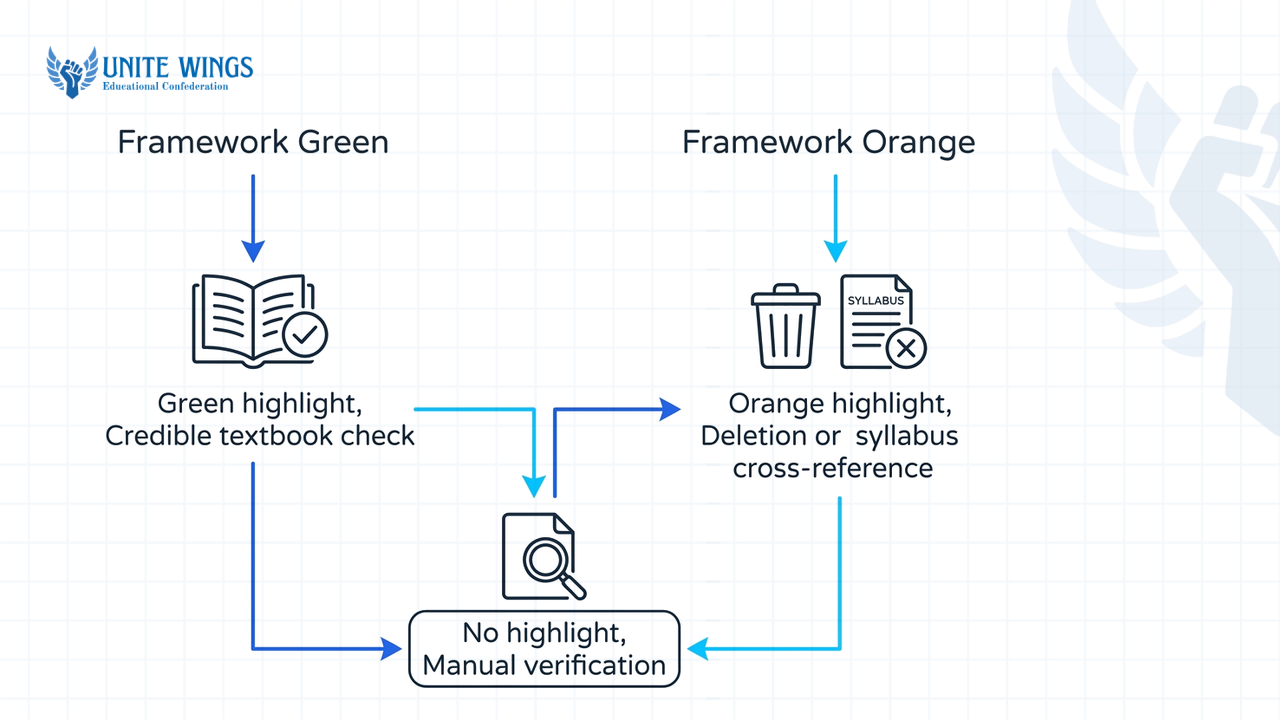
The "Double-check response" button cross-references Gemini's output sentence by sentence against live Google Search indexes, taking roughly seven seconds to mark up your text with color-coded highlights (Substack / Croma, 2024–2026). Green highlights show where Google Search found similar supporting content, while orange highlights flag statements that conflict with search results or have no backing source.
Older blogs and YouTube tutorials will tell you to click a "Google it" button, while Google's 2026 documentation points to the "Sources" panel, inline links, or the Double-check icon under the three-dot menu at the bottom of a response block (Dalimss.news, 2026). Regardless of which label your account shows today, the underlying verification check works the same way.
| Highlight Color | What Google Search Found | What You Must Do for Your Assignment |
|---|---|---|
| Green highlight | Live Google Search found web pages with similar statements (Medium / Croma, 2024–2026). | Click the highlighted sentence, open the linked source, and confirm the webpage is a credible textbook or journal rather than a random blog. |
| Orange highlight | Search results directly conflict with Gemini's statement, or Google found no matching source (Medium / Croma, 2024–2026). | Delete the claim from your assignment immediately, or look up the real figure in your syllabus textbook. |
| No highlight | The sentence has no factual intent (like transitions) or lacks enough data to run a search check (Croma, 2024–2026). | Treat any numbers, dates, or formulas inside unhighlighted text as unverified and check them manually. |
Do not assume a green highlight means 100% academic truth. Green only means a webpage somewhere on the internet says something similar. If a popular blog has a wrong date for an Indian contract law amendment, Gemini can repeat that mistake and still highlight it in green. Always click the green span to see which domain it matched.
Why does Gemini get college math and accounting calculations wrong?
Gemini gets college math, statistics, and B.Com accounting balance sheets wrong because it is a token-prediction language model performing text-based "mental math" rather than running numbers through a calculator (Google Gemini Community / Note.com, 2025–2026). Upgrading from a standard Flash model to Gemini Pro improves reading comprehension, but it does not stop basic arithmetic errors.
When you paste a cost-accounting table or a thermodynamics problem into the standard Gemini web app, the model guesses what digits look statistically likely to follow the previous words. Single-source testing on Note.com in 2026 points out a gap that trips up most students: the standard consumer Gemini chat interface does not expose a guaranteed user toggle to force Python code execution, so text-based calculation prompts can fail silently and give you a wrong sum.
Fix calculation errors on your numerical assignments with this 3-step workflow:
- If you must use the standard Gemini web chat, add this exact instruction at the end of your prompt: "Calculate the final figures using Python execution code; do not use mental math" (Note.com, 2026). Check the response to make sure you can actually see a block of Python code that ran.
- For guaranteed math accuracy, switch from the consumer web app to Google AI Studio, where native Python code execution can be enabled (Note.com, 2026).
- For long accounting ledgers or engineering problem sets, ask Gemini only to write out the step-by-step formula or the Excel formula (
=SUM(...),=NPV(...)), and run the actual numbers in Google Sheets or a physical scientific calculator.
How do I force Gemini to answer strictly from my uploaded PDF without outside guessing?
To force Gemini to answer strictly from your uploaded PDF, attach a selectable-text PDF before your written prompt and demand an exact sentence quote for every point before it writes a summary (Google Cloud Documentation / Prompt Architects, 2025–2026). If the document is a phone-camera scan without selectable text, Gemini cannot read the body and will hallucinate an answer based solely on the filename.
According to Google Gemini Apps Community reports by Fred SR in 2025, students constantly get burned when they upload scanned library handouts or handwritten notes saved as PDFs. Because standard consumer LLM PDF handling converts pages into images and extracts text tokens rather than building a true semantic database index, missing text layers cause silent failures (Prompt Architects, 2026).
Before uploading, know the exact platform limits so Gemini does not quietly drop pages from the middle of your textbook:
- File count and size: Gemini's web interface allows up to 10 files per prompt, with file size limits reported between 25 MB for standard direct attachments (Google Help, 2025–2026) and up to 100 MB for non-video documents (Fast.io, 2026).
- Context window: Paid Gemini Pro and Ultra tiers hold up to 1 million tokens, or roughly 1,500 pages of text (Fast.io / Context Link, 2026).
- Storage expiry: If you build a project using the Gemini Files API, uploaded files are automatically deleted after 48 hours by default (Fast.io, 2026).
Use this 4-step checklist to get zero-hallucination answers from your syllabus PDFs:
- Test your PDF by opening it in Chrome or Adobe Reader and trying to highlight a single word with your cursor. If the cursor selects the whole page as a picture, run Optical Character Recognition (OCR) first so the file has a real digital text layer.
- Attach the PDF to your Gemini message box before you type any instructions, which Google Cloud Documentation (2025–2026) recommends for optimal PDF parsing.
- Copy and paste this exact strict-grounding prompt (adapted from Prompt Architects 2026 and Vertex AI Documentation 2025): "Task: Analyze the attached PDF. Scope: Answer the question below strictly and exclusively using text from Section [X] of the attached document. Do not use outside knowledge, assumptions, or extrapolation. Proof: Before writing your explanation, quote the exact word-for-word sentence from the PDF that supports each point. If the answer is not explicitly stated in the document, write only 'Not found in document.'"
- If you want to set up reusable custom Gems that lock in these strict grounding rules across your Google Drive and Docs automatically, our Gemini Masterclass walks through the exact setup live.
What should I do when Gemini says 'I can't help with that' on a normal study question?
When Gemini blocks a harmless study question with "I can't assist with that" or "I am not programmed for that," open a brand-new chat session, clear your browser cache, and rephrase the prompt with explicit academic framing (Google Gemini Community, 2025–2026). Do not reply inside the same chat to argue, because the safety filter has already poisoned that conversation's context memory.
These blocks are called false refusals. According to Google Support and Gemini Apps Community reports from 2025 and 2026, overly sensitive safety filters and probabilistic wrapper checks frequently misfire on completely normal college prompts and safe study questions. Once a refusal triggers in a thread, Gemini's context window remembers its own refusal and repeats the canned error message on every follow-up question.
Break out of a false refusal loop in under a minute with these steps:
- Click "New chat" immediately. Never try to convince Gemini that your question is safe inside a thread that already threw an error.
- If the new chat still blocks you, clear your browser cookies and cache, or open an Incognito window to reset the session wrapper (Google Support Community, 2025).
- Rewrite your prompt by placing a neutral academic framing sentence at the very top: "A college student is preparing a university assignment on [Topic] for educational research purposes. Please summarize the following historical/legal text objectively:" (Google Support Community, 2025).
How to verify your next assignment in 15 minutes
Before you submit your next assignment, internship task, or placement case study, run this quick workflow so a preventable AI error does not cost you marks:
- Today: Open the draft you are working on, click the three-dot menu under Gemini's response, and run Double-check response. Delete or manually re-source every single sentence highlighted in orange.
- Before your next PDF upload: Open your reference PDF in Chrome and drag your mouse over a sentence. If you cannot select individual words, convert it to selectable text before giving it to Gemini, then paste the strict-grounding prompt from above.
- For your next numerical sheet: Bookmark Google AI Studio for any prompt that involves accounting balances, statistics, or engineering formulas, and switch on Code Execution before hitting run.
Set up Gemini properly for your college workflow
If you want Gemini connected directly to your Google Docs, Drive, and Gmail without hallucinations, join the Gemini Masterclass. You will walk away with custom-built Gems that enforce strict PDF grounding, a working Deep Research workflow for verified citations, and Canvas setups you can use on every assignment and placement project this semester.
Frequently asked questions
Why does Gemini give fake website links and non-existent research papers?
Gemini predicts plausible-sounding word sequences rather than querying a live library catalog, causing middle transformer layers to invent citations when input data is sparse (Mila.quebec, 2025). A 2026 PCMag and Oumi study found over 56% of Gemini 3 summary source links had erroneous matches or unsupporting references. Always verify links using the physical "Sources" button or Google Scholar.
How do I check if Gemini actually read my uploaded PDF or just guessed?
Check whether your PDF has selectable text by dragging your cursor over a line, because Gemini fails on image-only scans and guesses based on the filename alone (Google Gemini Apps Community, 2025). To verify it read the file, command Gemini to quote the exact supporting sentence and page number from the PDF before summarizing.
Can I trust Gemini for financial spreadsheets and accounting assignments?
No, you cannot trust standard Gemini web chat for accounting or spreadsheet math because it performs text-based token prediction instead of true arithmetic (Google Help Community, 2025). Use Gemini only to write the Google Sheets or Excel formulas, or run your problem inside Google AI Studio with Python code execution turned on (Note.com, 2026).
Does Gemini have a file upload size or page limit for students?
Yes, Gemini's web interface allows uploading up to 10 files per prompt, with file size limits reported between 25 MB for direct web attachments (Google Help, 2025–2026) and 100 MB for non-video documents (Fast.io, 2026). Paid Gemini Pro and Ultra plans handle a 1-million-token context window, which equals roughly 1,500 pages of text (Fast.io, 2026).
What is the difference between green and orange highlights in Gemini's double-check feature?
Green highlights mean Google Search found web content similar to Gemini's statement, while orange highlights mean search results conflict with the claim or no supporting source was found (Medium / Croma, 2024–2026). Unhighlighted text means the sentence has no factual intent or lacks enough information for Google Search to verify.
Why does Gemini keep repeating "I can't assist with that" even after I change my question?
Once Gemini's safety filter triggers a false refusal on a study prompt, that error message stays inside the conversation's context memory and causes the model to loop the same refusal on follow-up messages (Google Gemini Community, 2025–2026). Fix this by opening a brand-new chat, clearing your browser cache, and adding an educational disclaimer to your prompt.
Newsletter
Stay updated with our latest news and insights.