
How to Use ChatGPT and Claude to Build a College Deck in 30 Mins
Turn a 40-page project report PDF into a 10-slide presentation and speaker script in 30 minutes using 4 copy-paste prompts for Claude and ChatGPT.
To learn how to use ChatGPT and Claude to make a presentation for college in 30 minutes, run a four-stage workflow: upload your project PDF to lock an 8-to-10-slide structure, extract constrained slide copy, build architecture diagrams in Claude Artifacts, and generate a downloadable .pptx file with 1-minute speaker notes. According to 2026 workflow benchmarks from Daglo and Scholarly, splitting your process into material ingestion, structure locking, design polishing, and speaker notes prevents the AI from hallucinating numbers or dumping walls of text onto your slides. You will finish with an editable deck and a list of the 10 toughest viva questions your external examiner is likely to ask.
In short
- Upload your PDF into ChatGPT's Work tab or Claude's workspace and restrict output to 3-4 bullets per slide with zero invented statistics.
- Use ChatGPT's Code Interpreter (
python-pptx) for a raw structural.pptxskeleton, or Claude's Slides Artifact template for styled visual layouts that export to PowerPoint and Google Slides. - Enable Settings > Capabilities > Create and edit files in Claude to render system architecture flowcharts in the side panel on the free plan.
- Generate 50-to-75-word speaker notes per slide so your spoken pace hits exactly 1 minute per slide without reading bullets aloud.
- Feed your finished slide text back into the chat using a "Critical Examiner" prompt to rehearse 2-sentence defenses for methodology gaps before your viva.
How the 30-minute college deck workflow fits together
A 30-minute college presentation build is divided into four stages: material ingestion, structure locking, design polishing, and speaker notes/export formatting. Daglo and Scholarly's 2026 AI presentation workflow documentation confirms that separating structure locking from design polishing stops models from dropping methodology details when formatting slides.
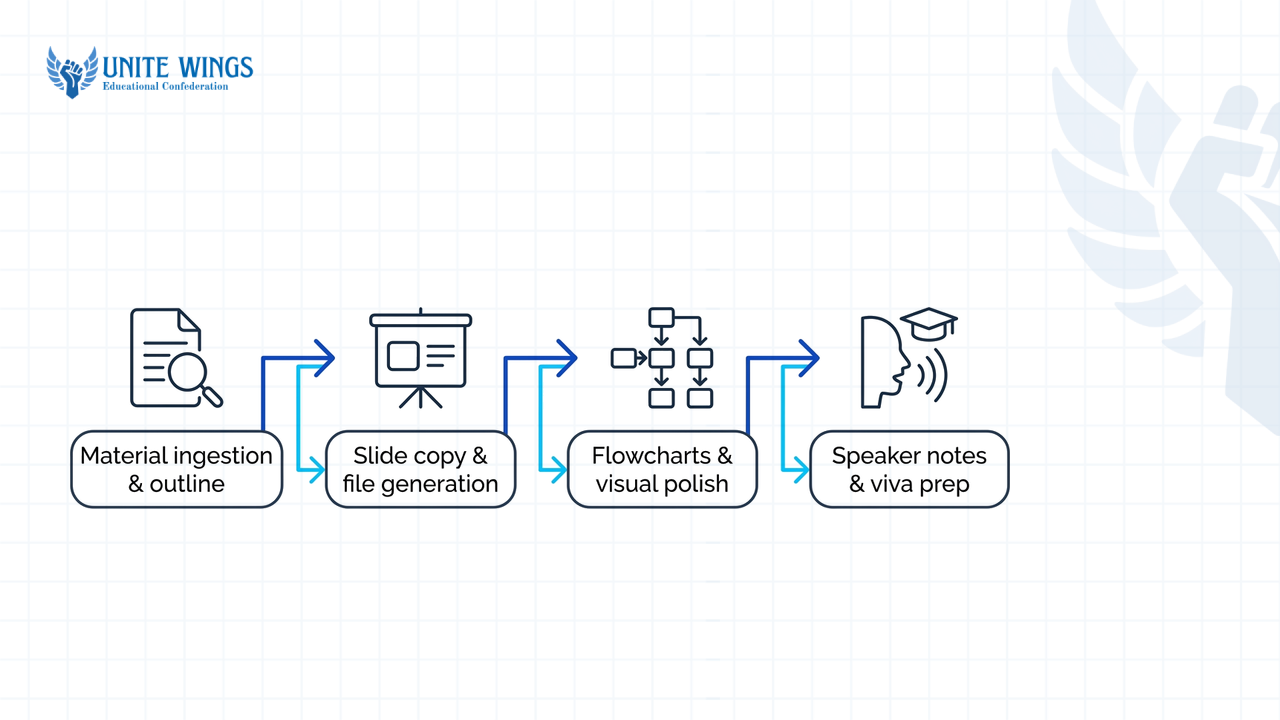
Most students waste an hour pasting single paragraphs into ChatGPT and manually copying bullets into PowerPoint one slide at a time. When you upload a large project PDF into a standard chat window without structural constraints, the model suffers from context drift, truncating later chapters. If your report includes multiple reference papers and raw literature notes, WebSkill India's 2026 student tool guide notes that students frequently pair NotebookLM with Claude or ChatGPT to consolidate localized source notes before drafting slide outlines.
| Workflow Stage | Stage | Best Free Tool & Feature | Exact Output |
|---|---|---|---|
| 1. Material Ingestion & Outline | Stage 1 | Claude Workspace or ChatGPT Work tab | 8-to-10-slide structural skeleton with exact data mapped |
| 2. Slide Copy & File Generation | Stage 2 | ChatGPT Code Interpreter or Claude Slides Artifact | Downloadable .pptx file or live editable slide deck |
| 3. Flowcharts & Visual Polish | Stage 3 | Claude Artifacts (Diagram block) + Canva / Gamma AI | Vector architecture diagrams and college-themed layouts |
| 4. Speaker Notes & Viva Prep | Stage 4 | ChatGPT or Claude text chat | 50–75 word scripts per slide + 10 ranked viva defenses |
How do you prompt Claude or ChatGPT to turn a project PDF into slide bullets?
Upload your project PDF directly into ChatGPT's Work tab or Claude's attachment bar and use a constraint-heavy prompt that assigns an academic specialist role, locks the slide count, limits each slide to 3-4 bullet points, and forbids altering original statistics. Medium's 2026 guide on turning PDFs into PowerPoint layout specs reports that specifying both on-slide copy and spatial layout per slide stops the AI from outputting generic summary paragraphs.
What most students get wrong here is typing "Make a 10-slide PPT from this PDF." That prompt causes the model to spend four slides on the introduction, skip your dataset size, and invent rounded percentages. According to Pi.inc's 2026 academic prompt guidelines, you must define your audience level (such as an external university panel), set strict slide counts, and verify every numerical claim manually after generation.
Follow these three steps to run Prompt 1 (PDF to Outline) and Prompt 2 (Slide Copy Spec):
- Clean your input file: If your report has raw code appendices or thank-you pages, delete those pages from the PDF before uploading so the context window focuses on your problem statement, methodology, and results.
- Run Prompt 1 to lock the narrative: Attach the PDF in Claude or ChatGPT's Work tab (which YouTube's 2026 ChatGPT Work documentation notes is designed to lock fixed slide counts without rambling) and paste this exact prompt: "Act as an academic presentation specialist preparing a final-year college project defense for an undergraduate engineering/management panel. Read the attached project PDF and build a strict 10-slide presentation outline. Map the slides across: 1. Title & Core Problem, 2. Literature Gap, 3. Proposed System/Methodology, 4. Architecture/Workflow, 5. Dataset & Experimental Setup, 6-7. Quantitative Results & Comparisons, 8. Limitations & Edge Cases, 9. Conclusion, 10. Future Scope. Do not write full paragraphs yet; confirm which section of the PDF feeds each slide."
- Run Prompt 2 to extract constrained slide bullets: Once the outline matches your rubric, follow up immediately in the same thread with this copy-and-paste prompt from Medium and Pi.inc's 2026 academic workflows: "Now generate the exact on-slide copy for all 10 slides based on the approved outline. For each slide, provide: (a) A short action title under 8 words, (b) Strictly 3 to 4 concise bullet points under 12 words each, and (c) A spatial layout instruction (e.g., two-column comparison, 3-step horizontal flow, or chart on left with 3 callouts on right). Preserve all original metrics, sample sizes, and statistics from the PDF verbatim. Do not invent, round, or extrapolate any numbers."
If you want to set up persistent workspaces that remember your academic formatting rules across every semester assignment, the Claude Masterclass walks through setting up Projects and Artifacts step by step.
Can ChatGPT generate a downloadable .pptx file directly in 2026?
Yes, ChatGPT can generate a downloadable .pptx file directly on both free and paid accounts in 2026 by running Python scripts with the python-pptx library inside Code Interpreter, or through the ChatGPT for PowerPoint Microsoft 365 add-in. However, 2026 testing by 24Slides and ML Clever confirms that native .pptx files from ChatGPT are plain, unbranded white slides with default typography that require secondary theme styling.
You have four ways to turn your locked slide copy into an actual presentation file, depending on whether you care more about automated charts, visual polish, or speed:
| Method | How It Works in 2026 | Visual Output Quality | Best Use Case |
|---|---|---|---|
ChatGPT Code Interpreter (python-pptx) | Runs Python in the background to build a local .pptx download link | Plain white background, default Calibri/Arial fonts (24Slides, 2026) | Building a structural skeleton or plotting raw CSV datasets directly onto slides |
| Claude Slides & File Creation | Uses Claude Artifacts side panel or File Creation under Settings > Capabilities | Clean modern template layouts; exports to .pptx, .pdf, or Google Slides (Deckary, 2026) | Fast college decks that need readable visual hierarchy without third-party apps |
| Gemini Canvas | Converts document drafts into slide structures inside Google Workspace | Standard Google Slides formatting (Daglo, 2026) | Group projects where teammates collaborate live inside Google Slides |
| Wrapper Tools (Gamma AI, Canva Magic Design, ChatSlide) | Ingests ChatGPT/Claude markdown text and applies pre-built design themes | High visual polish with custom palettes and auto-fitted grids (WebSkill India, 2026) | Final-year capstone pitches or placement case studies where aesthetics are graded |
If your project is data-heavy, ML Clever's 2026 testing shows a major advantage for ChatGPT's Code Interpreter: you can attach your raw .csv or .xlsx results file alongside your outline prompt and instruct ChatGPT to programmatically plot matplotlib charts and embed them directly into the .pptx slides. Use this prompt to trigger native file creation:
"Using Code Interpreter and the python-pptx library, convert the 10-slide copy above into a downloadable .pptx file. Set slide dimensions to 16:9 widescreen, use 28pt bold headers and 18pt body bullets, and plot the accuracy comparison table from Slide 6 as a bar chart embedded on that slide."
Because ChatGPT's native .pptx file looks bare, Skool's 2026 ChatGPT-to-PowerPoint workflow guide recommends a two-step fix: download the raw .pptx skeleton from ChatGPT, open it in Microsoft PowerPoint, and click Design > Browse for Themes to apply your college's official slide master (with your university logo and header colors) in 10 seconds. Alternatively, OpenAI offers the ChatGPT for PowerPoint add-in on the Microsoft Marketplace if your college provides a Microsoft 365 student license. If you do not have PowerPoint installed, paste your 10-slide text into Canva Magic Design, Gamma AI, or ChatSlide (a wrapper platform that, along with others like Gamma, serves over 300,000 users according to 2026 data). For students building case competition decks in Canva, the Canva AI Masterclass covers how to pair Magic Design with custom layouts so your slides do not look like a generic template.
How can Claude Artifacts create flowcharts and diagrams for your slides?
Claude Artifacts generate system architecture diagrams, methodology flowcharts, and interactive visual maps in a dedicated side panel beside your chat using code or vector rendering, available across all plans including the Free tier. According to Claude.com and Markloop's 2026 documentation, you must first enable Settings > Capabilities > Create and edit files (or Code execution and file creation) for Claude to render standalone visual artifacts and exportable files.
During a college project evaluation, professors routinely deduct marks if Slides 3 and 4 (Methodology and System Architecture) are just bulleted text instead of block diagrams. Drawing boxes and arrows manually in PowerPoint takes 25 minutes. Claude Artifacts does it in 45 seconds.
Here is the exact step-by-step to generate and export your project diagram using Prompt 3 (Diagram Artifact):
- Turn on Capabilities: Click your profile icon in the bottom-left corner of Claude, open Settings > Capabilities, and toggle on Artifacts and Create and edit files.
- Distinguish Artifacts from File Creation: As Claude.com's 2026 documentation explains, Claude's file creation builds separate downloadable
.pptx,.docx, or.pdffiles, whereas Claude Artifacts open in a live interactive side panel where you can edit text directly or tweak diagram nodes in real time without regenerating the whole chat. - Run Prompt 3 for your architecture diagram: In the same chat where Claude read your project PDF, paste this prompt: "Look at Section 3 (Methodology / System Architecture) of my uploaded project PDF. Create a horizontal system architecture flowchart as a Claude Artifact using clean vector diagramming blocks. Show the exact pipeline from raw data input, preprocessing steps, model/algorithm execution, to final output evaluation. Label each arrow with the data format or transformation happening at that step, and use a high-contrast white background suitable for a PowerPoint slide."
- Edit and place into your deck: Once the flowchart renders in the right-hand Artifact panel, check every block label against your report. If a node name is too long, ask Claude "Shorten node 3 to under 4 words" or edit the text directly inside the Slides/Design artifact template. Take a high-resolution export or screenshot of the rendered vector block and drop it straight onto Slide 4 of your presentation.
While basic Slides, Docs, and Design templates in Claude Artifacts work on the Free plan, Deckary's 2026 plan breakdown notes that complex live data dashboards require higher team subscriptions—so stick to static vector flowcharts and standard slide artifacts for your college presentation.
How do you use AI to write natural 1-minute speaker notes per slide?
Prompt ChatGPT or Claude to write a 50-to-75-word conversational script per slide that explains the underlying context, evidence, and transition to the next slide without repeating the on-slide bullet points verbatim. Documentation from Plus AI and Aspose in 2026 establishes that 50 to 75 words per slide matches standard academic speaking rates for a 1-minute delivery per slide.
Standing in front of your department HOD and reading your slide bullets word-for-word is the fastest way to lose presentation marks. Presenti and Medium's 2026 speaker notes workflows emphasize that your slide body should hold only visual anchors (3-4 short phrases or a chart), while your spoken narration delivers the "so what" factor—why you chose a specific hyperparameter, why a baseline model failed, or what a spike in your graph actually means.
Run this prompt right after locking your 10 slides to generate your spoken script: "Write natural 1-minute speaker notes for each of the 10 slides above. Keep each slide's script strictly between 50 and 75 words so the total presentation runs 8 to 10 minutes. Follow three rules: (1) Never read the on-slide bullet points verbatim, (2) Explain the 'so what' context and the evidence behind the numbers on the slide, and (3) End each slide's script with a 1-sentence verbal bridge introducing the next slide."
Look at the difference between a weak student script and a 62-word AI-generated script built with this prompt for a B.Tech Machine Learning project slide:
- On-Slide Bullets (Slide 6):
- Random Forest achieved 91.4% accuracy vs SVM at 84.2%
- False negative rate dropped by 18% on imbalanced test split
- Inference latency held under 45ms on CPU
- Bad Speaker Note (Repeating bullets): "On slide six we see our results. Random Forest achieved 91.4 percent accuracy compared to SVM at 84.2 percent. Also, the false negative rate dropped by 18 percent on our imbalanced test split, and inference latency was under 45 milliseconds on CPU. Next slide please."
- Good 1-Minute Speaker Note (62 words, conversational context): "While accuracy improved across the board, the real breakthrough here is the 18 percent drop in false negatives. In medical screening, missing a positive case is far more dangerous than a false alarm, which is why SVM failed our deployment criteria. Because our ensemble runs in 45 milliseconds on a standard CPU, clinics don't need expensive GPUs. However, this model still struggles with three specific edge cases, which you can see on Slide 7."
How do you ask AI to predict the 10 toughest viva questions from your slides?
Copy your final slide bullets and project PDF into ChatGPT or Claude and instruct the AI to role-play as a skeptical external examiner, ranking the 10 toughest viva questions across "What, Why, How, and What If" categories alongside a 2-sentence defense strategy for each. According to 2025–2026 presentation Q&A guides from Medium, The.sify, and DueToday, framing the AI as a "Hostile Committee Member" forces it to target methodology vulnerabilities, dataset biases, and unstated assumptions rather than asking textbook definitions.
External examiners rarely ask "What is Python?" during a final-year defense. They look at Slide 5 and ask why your sample size is only 400 rows, or look at Slide 7 and ask what happens if the sensor disconnects mid-stream. While AI viva simulations cannot predict a specific professor's personal pet peeves, Copilot Interview and The.sify's 2026 findings show that rehearsing against an adversarial prompt eliminates hesitation on data discrepancies.
Paste Prompt 4 (Viva Q&A Simulator) into your chat thread after finalizing your slides and speaker notes: "Act as a strict external examiner and hostile committee member evaluating a college final-year project viva. Analyze both my uploaded project PDF and the 10 presentation slides we just created. Predict the 10 toughest viva questions you would ask to test whether I actually built this project and understand its flaws. Rank them by priority across four categories: What (data/definitions), Why (methodology choices over alternatives), How (implementation mechanics), and What If (edge cases and failure modes). Focus specifically on sample size limits, anomalies in my results, and unstated assumptions. For each question, write a sharp 2-sentence defense strategy citing the exact evidence from my report."
Watch out for the methodology trap
When the AI generates your 2-sentence viva defenses, check every cited page number and metric against your printed report. As Pi.inc's 2026 academic AI ethics guidelines stress, LLMs can still conflate baseline literature numbers with your own experimental results when summarizing long PDFs. Never quote a defense number in front of an examiner without verifying it in Chapter 4 of your report first.
Your action plan for tonight (and how to master this workflow)
If your presentation or project review is tomorrow morning, do not spend tonight tweaking font pairings. Execute this timeline over the next 30 minutes:
- In the next 5 minutes: Open Claude or ChatGPT's Work tab, upload your project PDF (with code appendices stripped out), and run Prompt 1 and Prompt 2 to lock your 10-slide structure and 3-to-4-bullet slide copy.
- Minutes 5 to 20: Generate your system architecture block diagram in Claude Artifacts using Prompt 3, then export your deck as a
.pptxfile via Claude Slides or ChatGPT Code Interpreter and apply your college's PowerPoint template. - Minutes 20 to 30: Run the 50-to-75-word speaker notes prompt and Prompt 4 (Viva Q&A Simulator). Read the 10 viva defenses out loud twice before going to sleep.
Go beyond one-line prompts with the ChatGPT Masterclass
If you want to build repeatable multi-step workflows for your college projects, research papers, and placement case studies, join the ChatGPT Masterclass. You will learn how to use Projects, custom GPTs, deep research, and study mode so you can turn complex documents into structured outputs in minutes instead of hours.
Frequently asked questions
Can ChatGPT make a PowerPoint presentation for me for free?
Yes, ChatGPT can generate a downloadable .pptx file for free using its built-in Code Interpreter (python-pptx). However, 2026 testing by 24Slides shows these native files are plain white, unbranded slides, so you should apply a PowerPoint design theme after downloading or paste the text into Canva or Gamma.
How do I turn a long PDF report into a 10-slide presentation using Claude?
Upload your PDF into Claude, enable Create and edit files under Settings > Capabilities, and prompt it to act as an academic specialist building a 10-slide Claude Slides Artifact. Restrict each slide to 3-4 bullets under 12 words and instruct Claude to preserve all original statistics verbatim.
How do I prevent AI from hallucinating data in academic slides?
Add an explicit negative constraint in your prompt instructing the model to preserve original metrics and sample sizes without inventing, rounding, or extrapolating numbers. For multi-file literature reviews, pair NotebookLM with Claude or ChatGPT to ground the outline strictly in your uploaded PDFs, and manually verify every chart metric.
What is the difference between ChatGPT native .pptx output and tools like Gamma?
ChatGPT's native .pptx output uses Python code to build a basic structural skeleton with white backgrounds and default fonts, though it can programmatically plot raw CSV charts. Wrapper tools like Gamma AI, Canva Magic Design, and ChatSlide take ChatGPT's text and apply visual layouts, color palettes, and responsive grids automatically.
Can Claude Artifacts create flowcharts and diagrams on the free plan?
Yes, Claude Artifacts is available on the free plan and can render flowcharts, system architecture diagrams, and visual maps in the right-hand side panel using code or vector blocks. You only need a paid team subscription if you are building advanced interactive data dashboards.
How long should AI-generated speaker notes be for a 1-minute slide?
Prompt the AI to write strictly 50 to 75 words per slide. According to 2026 benchmarks from Plus AI and Aspose, 50 to 75 words matches a natural academic speaking pace for a 60-second slide delivery, giving you time to explain chart context and transition smoothly without rushing.
Newsletter
Stay updated with our latest news and insights.