
How to Make a Student Portfolio in Canva (PDF + Web Link)
A 6-step workflow to build a clean Canva portfolio in under two hours, fix broken mobile text, and export both a live website link and a sub-5MB PDF.
To build a student portfolio in Canva that works as both a live web link and an email-friendly document, open Canva, search for a "Portfolio Website" template instead of a presentation deck, and group every image with its text caption using Ctrl + G (Cmd + G on Mac) so your layout does not scramble on mobile screens. When you finish, publish it to a free Canva-provided subdomain for your resume header, and export a backup copy using Share > Download > PDF Standard with the Flatten PDF checkbox turned off so your project links stay clickable.
In short
- Pick a Portfolio Website template (supports up to 20 scrolling sections per page) instead of a 16:9 Presentation deck, which forces recruiters to pinch-and-zoom on phones.
- Group captions to their matching images (
Ctrl/Cmd + G) and turn on Resize on mobile in publish settings so Canva's vertical stacking does not scramble your layout. - Export your file as PDF Standard and leave Flatten PDF unchecked, or every hyperlink to your Google Drive, GitHub, or live campaigns will die.
- Hide long
canva.com/design/...URLs by hyperlinking anchor text on your resume, or shorten them using Canva's built-in QR & Links app (free for up to 10 links a month).
Should I use Canva Website or Canva Presentation for my student portfolio?
Use Canva Website if recruiters will open your link on a phone or click through from LinkedIn, and keep Canva Presentation only for live screen-share interviews or desktop PDF attachments. According to We.inc, Canva Website templates support up to 45 pages per site and 20 sections per page, giving you a vertical scrolling layout that adjusts to mobile screens, whereas slide presentations lock you into fixed horizontal boxes that look cramped on handheld devices.
Here is the mistake I see every placement season from BBA, BCom, and media freshers: you design a gorgeous 12-slide presentation on your laptop, copy the view link, and paste it into a cold message on LinkedIn or Internshala. The hiring manager opens that message on their phone between meetings. Instead of a scrolling page, they get a tiny horizontal rectangle in the middle of a vertical phone screen, with 8-point font they cannot read without pinching and zooming on every slide. Most close the tab by slide two.
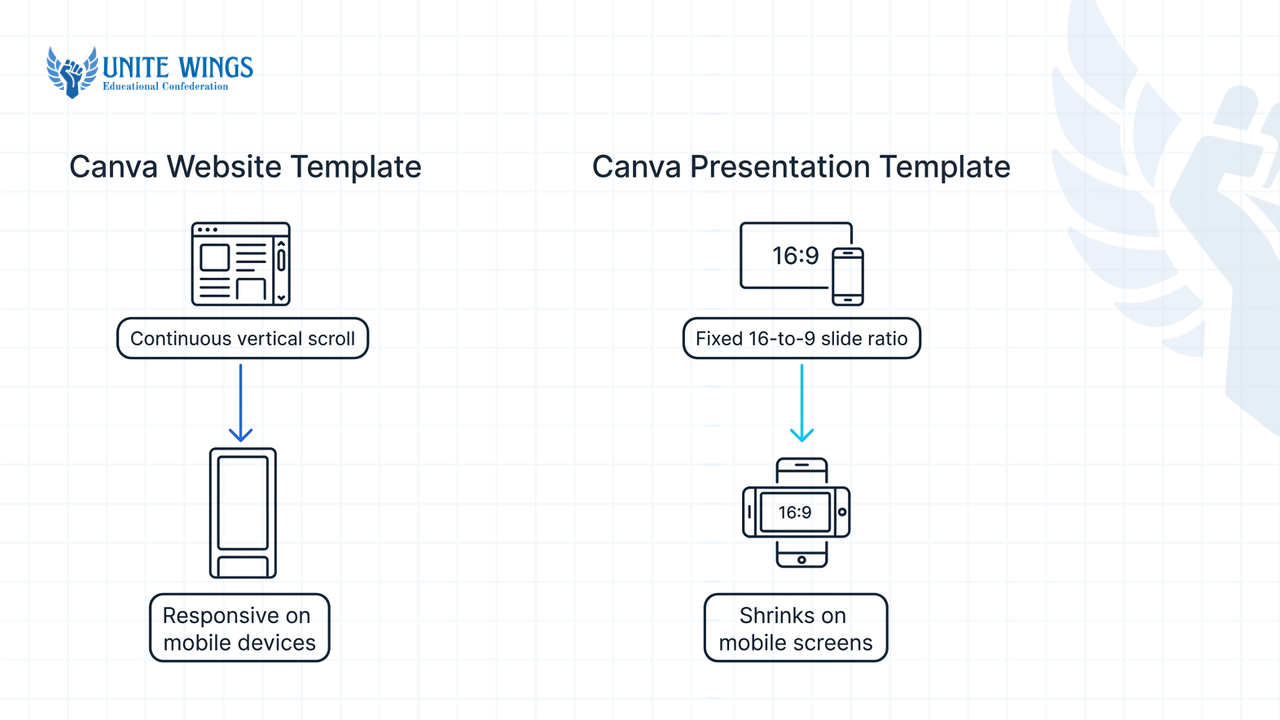
| Feature | Canva Website Template | Canva Presentation Template |
|---|---|---|
| Screen behavior | Continuous vertical scroll; stacks elements for mobile screens | Fixed 16:9 slide ratio; shrinks to a tiny strip on mobile phones |
| Capacity limit | Up to 45 pages per site and 20 sections per page (We.inc) | Standard multi-slide deck; best kept under 10 slides for email size |
| Free hosting | Publishes free on a Canva-provided subdomain (We.inc) | Shares via a canva.link or canva.com/design view URL |
| PDF export | Exports as long vertical pages or individual section pages | Exports cleanly as standard landscape slides for desktop viewing |
| Best use case | Resume header links, LinkedIn Featured section, WhatsApp outreach | Campus placement forms requiring document uploads, live panel interviews |
Follow this decision rule: if you are applying off-campus via LinkedIn, Naukri, or cold email, start with a Portfolio Website template. You get a live website and you can still download the sections as a PDF Standard file for job portals that mandate document uploads. If your college placement cell specifically asks for a presentation deck to project on a classroom screen during a panel interview, use the Presentation format.
If you are staring at a blank page because you do not have internship work to show yet, our AI Portfolio Sprint walks you through picking, building, and publishing a real proof-of-work project from scratch.
Step-by-step: how to make a portfolio in Canva for students
You can set up a 5-section portfolio in under two hours if you organize your project proof before touching fonts or colors. Follow these six steps to build a single Canva file that exports cleanly as both a live site and an interactive PDF.
- Pre-upload all video and image proof to Canva's library first. Do not drag and drop screen recordings or event videos directly from your phone camera roll onto the canvas. According to Ninefolio, videos added straight from local camera rolls without processing through Canva's Uploads tab often render as grey placeholder boxes or fail to play on the live mobile site. Click Uploads > Upload files, wait for the blue loading bar to finish, and then click the media to place it on your page.
- Open the right canvas. From the Canva home screen, click Create a design and type
Portfolio Websiteinto the search bar. Do not click "Presentation" or "Doc". - Map out 4 to 5 vertical sections. Canva allows up to 20 sections per page (We.inc), which is far more than any recruiter will read. Restrict your homepage to five sections:
- Section 1 (Hero): Your name, target role (e.g., "BCom Hons Final Year | Financial Operations & Excel Reporting"), college name, and two buttons:
Email MeandDownload Resume PDF. - Section 2 to 4 (3 Proof Projects): One section per project. On the left half, place one clear screenshot (a dashboard, a campaign post, an audit sheet, or an event budget table). On the right half, write three lines: Problem (what needed fixing), Action (the tool and method you used), and Result (the number or outcome, plus a clickable button to the raw file).
- Section 5 (Education & Contact): Degree, graduation year, tool stack (e.g., Tally, Advanced Excel, Canva, Google Analytics), and your email and LinkedIn links.
- Section 1 (Hero): Your name, target role (e.g., "BCom Hons Final Year | Financial Operations & Excel Reporting"), college name, and two buttons:
- Lock your hierarchy with three font sizes. Stick to 32–40pt for section headings, 20–24pt for project titles, and 14–16pt for body descriptions. Extremely small text on a Canva desktop canvas can scale down and become hard to read on a mobile screen.
- Group paired elements before publishing. Hold
Shift, click a project screenshot and its matching text block, and pressCtrl + G(Cmd + Gon Mac). This tells Canva to keep them together when the screen narrows. - Publish and export both formats. Click Publish Website in the top right for your live URL, then click Share > Download > PDF Standard for your offline attachment.
Why does my Canva portfolio website look misaligned on mobile phones?
Canva websites break on mobile phones because Canva does not give you a separate mobile editor; instead, it adapts desktop layouts by automatically stacking elements vertically from left to right and top to bottom. As Ninefolio and Canva Help explain, any overlapping layers, ungrouped text boxes, or wide multi-column grids get pulled apart during this automatic vertical reflow, causing captions to drift away from their images.
What most students get wrong: the zigzag grid trap
Students love building alternating "zigzag" layouts on desktop: Project 1 has the image on the left and text on the right; Project 2 has the text on the left and the image on the right. When Canva stacks that layout vertically for a phone screen, it reads left-to-right every time. On a recruiter's phone, your portfolio renders as: Image 1 → Text 1 → Text 2 → Image 2. The recruiter reads the caption for Project 2 before seeing what it is, and assumes you were careless. Put the image on the left (or top) for every single project.
Since you cannot edit the mobile view independently in Canva, use these four layout fixes on your desktop canvas so the automated stacking works in your favor:
- Group every visual with its label. Select the project image, its title, its 3-line description, and its "View Project" button together, then press
Ctrl + G(Cmd + G) and click the Lock icon on the floating toolbar (Ninefolio). Canva treats a grouped block as a single unit during vertical stacking instead of scattering the pieces. - Never overlap decorative shapes behind text. If you place a colored rectangle behind a text box without grouping them, mobile reflow often stacks the blank rectangle first and pushes your text below it into white space. Put text directly inside shape boxes (double-click the shape to type inside it) or group them tightly.
- Avoid wide multi-element banners. Keep your sections to a maximum of 2 columns on desktop. Four-column "skills icon" rows (like placing tiny logos for Excel, PowerPoint, Word, and SQL side by side) either crush into tiny icons or stack into a long, awkward single-file column that takes three scrolls to get past on a phone.
- Turn on the mobile resize toggle. Before you hit the final publish button, open the publishing settings panel on the right side of the editor and make sure the Resize on mobile checkbox is switched ON (Canva Help). Then click the Preview icon at the top of the screen and switch from the Desktop icon to the Mobile phone icon to check the vertical order before your link goes live.
How do I make clickable links work inside a Canva PDF portfolio?
To keep hyperlinks working inside an exported Canva PDF, select PDF Standard in the download menu and leave the Flatten PDF box unchecked. According to Fliplink.me and Canva tutorial documentation, checking "Flatten PDF" merges all text and interactive layers into a single static image per page, which permanently strips out every embedded hyperlink in your portfolio.
Job portals like Naukri, Superset, and college placement Google Forms usually ask for a PDF upload rather than a web URL. A static PDF cannot show a live social media reel, a working Excel model with macros, or a 15-page market research report, so your PDF portfolio acts as a summary menu that links out to your raw proof on Google Drive, YouTube, or Notion. If those links do not click, your proof is locked away.
Follow this exact sequence to wire and test your links:
- Link text and buttons properly. Highlight the words on your button (for example,
Open Financial Model (Google Sheets)), select the text or element, open the toolbar 'Link' menu, input the target URL, and press Enter (Fliplink.me). - Link the button background shape too. On a phone screen, a recruiter's thumb might tap the colored button box slightly outside the text letters. Click the rectangle shape behind your text, open the Link menu, and paste the exact same URL so the entire button area is clickable.
- Use automatic
mailto:and URL detection for contact details. Canva automatically converts standard web URLs andmailto:email addresses typed into text boxes into live links. Typemailto:yourname@gmail.cominto the link field on your email text so clicking it opens the recruiter's default mail app. - Export with the right settings. Click Share > Download. Change the File Type dropdown to PDF Standard (which keeps file sizes small for email attachments and supports web links, unlike JPEG or PNG exports which cannot hold hyperlinks at all).
- Leave "Flatten PDF" unchecked. Look right below the page selection dropdown. Make sure the box next to Flatten PDF is empty.
- Run the incognito test. Open the downloaded PDF on your laptop, click every button, and verify that any linked Google Drive folders are set to "Anyone with the link can view" and not restricted.
Which free Canva templates look cleanest for corporate job applications?
For corporate roles in finance, consulting, operations, HR, and analytics, pick minimalist templates with neutral palettes (black, white, slate, or beige) and strict grid alignments rather than bright scrapbooks or illustration-heavy layouts. Canva's student template library includes structured options like the Black and White Modern Portfolio A4 for PDFs, and searching keywords like "Minimalist Portfolio Website" or "Corporate Resume Deck" surfaces clean layouts suited for formal recruiters (Pristify).
Why does template choice matter right now? According to the 2026 India Skills Report (Jobsify.ai), overall graduate employability in India sits at 56.35%, and August 2026 Naukri JobSpeak data shows fresher hiring (0–3 years experience) grew 15% year-on-year, led by non-IT corporate sectors: insurance fresher hiring jumped 37%, auto grew 19%, healthcare 16%, and retail 15%. Meanwhile, Devhives notes that while mass IT recruiters (like TCS, Infosys, and Wipro) hire at 3.5–4.5 LPA using standardized tests, higher-paying corporate and product tracks (12–30 LPA) look for proof of execution.
When an operations manager at a retail brand or an analyst lead at an insurance firm opens a BCom or BBA fresher's portfolio, they want to read your data tables, internship metrics, and process diagrams in ten seconds. Over-designed templates get in the way.
What to strip out of any free Canva template immediately
- Skill percentage bars and star ratings: Delete any graphic that says "MS Excel – 85%" or shows 4 out of 5 stars for "Communication." Recruiters hate these because "85% of Excel" means nothing. Replace the bar with one line of proof: "Built an automated VLOOKUP + Pivot Table tracker for 400+ vendor invoices during college fest."
- Cursive or script headings: Swap any handwriting font to a clean sans-serif like Inter, DM Sans, Plus Jakarta Sans, or Montserrat.
- Stock photos of laptops and coffee cups: If a template has placeholder aesthetic photos, delete them. Every square inch of image space should be a screenshot of work you actually did (a poster you designed, a P&L sheet you balanced, a survey chart from your final-year dissertation, or a certificate).
One honest caveat on tool perception: as discussed by hiring managers on r/graphic_design, creative directors at specialized design agencies often expect senior graphic or UI/UX applicants to use dedicated builders like Adobe Portfolio, Framer, or Wix rather than Canva. However, for general corporate, marketing, media, operations, and business freshers in India, a clean Canva website or PDF is practical, fast, and widely accepted. If you want to use Canva's AI features to clean up project mockups and rewrite bulky slide paragraphs into sharp bullets, our Canva AI Masterclass covers Magic Design and Magic Write workflows in practice.
How do I shorten an ugly Canva view link before putting it on my resume?
Never paste a raw, lengthy canva.com/design sharing link onto your resume; instead, publish your project as a free website on a Canva subdomain, hyperlink clean anchor text directly inside your resume document, or shrink the link using Canva's built-in URL shortener or third-party tools like Bitly and TinyURL (RocketLink).
A lot of online tutorials tell you to just click "Personalize your link" inside Canva's share menu to rename your canva.link ending. Here is the catch those guides leave out: customizing the slug on a native canva.link share URL is locked behind Canva Pro, Business, and Enterprise plans (with Pro allowing up to 5 custom links), and custom domains for Canva websites also require a paid tier (We.inc). If you are on a Canva Free account, you cannot edit the random letters at the end of a standard share link.
Use one of these three free methods instead, depending on where you are sharing the link:
- Publish to a free Canva Website subdomain (Best for everything). Free, Pro, Teams, and Education accounts can all publish a website for free on a Canva-provided subdomain address (We.inc). When you publish your website, Canva lets you choose your own subdomain prefix, so you can claim a clean, custom subdomain address at zero cost.
- Use Canva's internal QR & Short Links app or Bitly (Best for printed resumes and WhatsApp). According to Canva's URL Shortener page, free Canva accounts can generate up to 10 short links per month using the built-in short link app under the Apps tab in the left sidebar. Alternatively, paste your public view link into a free Bitly or TinyURL account (RocketLink). Make sure you sign up for a free account on Bitly before shortening, because if you shorten a link anonymously on a homepage widget, you can never log back in to see click analytics or fix a broken destination.
- Hyperlink anchor text on your PDF resume (Best for ATS and email applications). In your Word or Google Docs resume header, type
View Portfolio(orView Marketing Portfolio), highlight the text, open the Link menu, and paste your live Canva URL. Even if a recruiter prints your resume on paper for a campus interview panel, a clean Canva subdomain address can still be easily typed into a browser.
Your 48-hour action plan to get your portfolio live
Do not spend three weeks tweaking color palettes while application windows close. Block out two evenings this week to ship Version 1:
- Tonight (60 minutes): Open Google Drive and create one folder called
Portfolio Proof - [Your Name]. Drop in 3 project files (a college project deck, an internship sheet, a campaign analysis, or an event report), right-click the folder, and set general access to Anyone with the link → Viewer. - Tomorrow evening (60 minutes): Open Canva, select a minimalist Portfolio Website template, add your 3 projects with Problem-Action-Result bullets, group every image with its text (
Ctrl/Cmd + G), and publish to a free Canva subdomain address with Resize on mobile turned ON. - Before you sleep tomorrow (15 minutes): Download a backup PDF Standard copy (with Flatten PDF unchecked), test every link on your own phone, and add the live URL to your LinkedIn Featured section and resume header.
Design faster with the Canva AI Masterclass
If your project screenshots and decks still look like rough college assignments, join the Canva AI Masterclass. You will learn how to use Magic Design and Magic Write to turn messy drafts into clean, corporate-ready portfolio layouts, pitch decks, and social proof visuals in a single session.
Frequently asked questions
Can I use a custom domain for my Canva portfolio on a free plan?
No, connecting a custom domain (like yourname.com) to a Canva website is restricted to paid tiers, including Canva Pro, Teams, and Education plans (We.inc). On the Canva Free plan, you can publish your site at no cost using a Canva-provided subdomain address, where you can still choose the first part of the web address.
Why are the hyperlinks in my downloaded Canva PDF not opening?
Your links are dead because you either checked the Flatten PDF box during download or exported your portfolio as a PNG or JPEG image. Flattening merges all design layers into a static image and strips out hyperlink data (Fliplink.me). Re-download the file as PDF Standard and leave Flatten PDF unchecked.
Why do videos on my Canva portfolio website show a grey box on phones?
Videos render as grey boxes or fail to play when you drag them directly from your phone camera roll or local folder onto the website canvas without letting Canva process them first (Ninefolio). Delete the broken video from your page, upload the MP4 file through the Uploads tab in the left sidebar until the progress bar finishes, and then place it into your layout.
Are Canva portfolios acceptable for corporate and IT job applications in India?
Yes, for corporate, operations, marketing, finance, and entry-level tech roles in India, a clean Canva website or PDF portfolio is widely accepted by recruiters as project proof. Only specialized senior design agencies sometimes prefer builders like Framer or Adobe Portfolio (Reddit). Keep your layout minimal, focus on project metrics, and avoid over-decorated templates.
How do I optimize a Canva portfolio for ATS or recruiter review?
Do not upload a multi-column, graphic-heavy Canva portfolio PDF into an Applicant Tracking System (ATS) slot meant for your resume. Instead, upload a clean, single-column text resume constructed in Word or Google Docs, and place your clickable Canva Website portfolio link right in the contact header so the human recruiter opens it after the ATS parses your resume.
Newsletter
Stay updated with our latest news and insights.