
Submitted to Turnitin Twice and Got 100% Match? How to Remove Your Paper
When a pre-check locks your draft into Turnitin's database, your final upload hits 100% self-plagiarism. Find your 9-digit Paper ID and use this admin request template to wipe it.
You cannot delete a paper from Turnitin yourself, even if it is your own work. Your college's Turnitin administrator or your course instructor has to process the removal using your 9-digit Submission ID, or your guide can exclude the earlier match directly inside the Similarity Report quickly if your deadline is today.
In short
- Students cannot delete submissions or email Turnitin Support directly; only your college administrator or an authorized instructor can remove a paper from the repository.
- Grab your 9-digit Submission ID (or
oid:number) from the info (i) icon in Feedback Studio or from your downloadable digital receipt PDF. - Clicking "Remove from Inbox" only hides the file from the assignment folder and leaves your 100% match active in the global database.
- Approved repository deletions enter a 30-day holding window before permanent erasure, so ask your guide to use Exclude Sources if your final submission is due today.
Why Turnitin flags your own paper at 100%
When you upload a file to a standard Turnitin assignment, the system indexes that text into its global Standard Paper Repository indefinitely. According to AI Plag Guides, submitting the exact same document a second time triggers a 100% similarity match because the first copy is already sitting in the database.
This usually happens in Indian colleges in one of two ways. Either you pre-checked your thesis chapter in an open practice portal before uploading to your final semester link, or you asked a senior or friend at another college to run a quick check for you. Standard Turnitin reports take 10 to 15 minutes to process, as noted by EssayDone, and once that first report generates under a standard repository setting, your text is locked in for cross-checking.
There are only two exceptions where a second upload does not trigger a self-match:
- Resubmissions before the deadline: If your instructor enabled multiple attempts before the due date, uploading a new file automatically overwrites the previous draft in the same dropbox, according to Turnitin0. After the due date passes, a second upload in a different slot creates a 100% match.
- No Repository assignments: If the portal was set to "No Repository" (Do Not Store), Turnitin checks your paper against existing sources without saving your file, which prevents future self-matches.
What most students get wrong is emailing Turnitin Technical Support directly or trying to delete the file from their own student dashboard. Turnitin states that it cannot process deletion requests from students due to data privacy rules and institutional contracts, so any ticket you raise with Turnitin directly will be rejected.
Where do I find the 9-digit Turnitin Paper ID on my similarity report?
You can find your unique 9-digit Paper ID (also called the Submission ID) inside Turnitin Feedback Studio by clicking the information icon (i) in the corner of your report, or by checking the downloadable digital receipt sent when you uploaded the file. Administrators need this exact number to locate your paper in the backend.
Depending on which version of the report viewer your college uses, follow these steps to copy the ID:
- In the enhanced Turnitin report viewer: Open your similarity report, click the
iicon in the top-right corner of the screen, and copy the Submission ID listed in the details panel. - In the classic Turnitin report view: Click the help icon in the top-right corner of the panel, select Submission Details, and copy the Paper ID.
- From your digital receipt: If you no longer have access to the report viewer, check your college email inbox or assignment dashboard for the downloadable Turnitin Digital Receipt PDF. Turnitin's documentation confirms this receipt lists your author name, upload timestamp, file size, word count, and the unique Submission ID.
One detail that trips up both students and junior faculty is the lookup format. According to Turnitin's Paper Lookup guide, institution administrators searching inside the internal Paper Lookup tool must type the prefix oid: directly in front of the numerical ID (for example, oid:123456789). Including the oid: prefix when you send your request saves your college admin from back-and-forth emails.
Can a professor delete a paper from Turnitin or only the college administrator?
In most universities, only the central Turnitin account administrator—usually your college librarian, exam cell coordinator, or IT nodal officer—can permanently delete a paper from the repository. Some universities enable a self-service permanent deletion button for professors inside the assignment inbox, while others block faculty from deleting papers altogether.
Because permissions vary by campus, you need to know the difference between hiding a file from a class folder and wiping it from Turnitin's global database.
| Action | Who can do it | Removes 100% match from repository? | Turnaround time |
|---|---|---|---|
| Remove from Inbox | Professor or Admin | No, only hides from course view | Immediate |
| Self-service permanent deletion | Professor (if enabled by college) | Yes, after admin approval | 30-day holding window |
| Manage Submissions / Paper Lookup | College Turnitin Admin | Yes | 30-day holding window |
| Exclude Sources in report | Professor or Guide | No, bypasses match in current report | Immediate |
What most students get wrong is asking their professor to "remove the file from the assignment inbox" and assuming the problem is solved. The American University in Cairo guidelines clarify that clicking "Remove from Inbox" only clears the paper from that specific course folder while leaving it active in Turnitin's global repository. If you re-upload your thesis to another portal, the 100% match will still appear.
Where university policies differ is on who initiates the permanent repository removal. At institutions like the University of Manchester, instructors can trigger an automated self-service permanent deletion request directly from the assignment inbox. At many Indian engineering and management colleges, however, faculty accounts do not have delete permissions enabled, meaning your guide has to forward your request to the central library or IT administrator who holds the institutional admin login.
Step-by-step: how to delete a submitted paper from the Turnitin repository
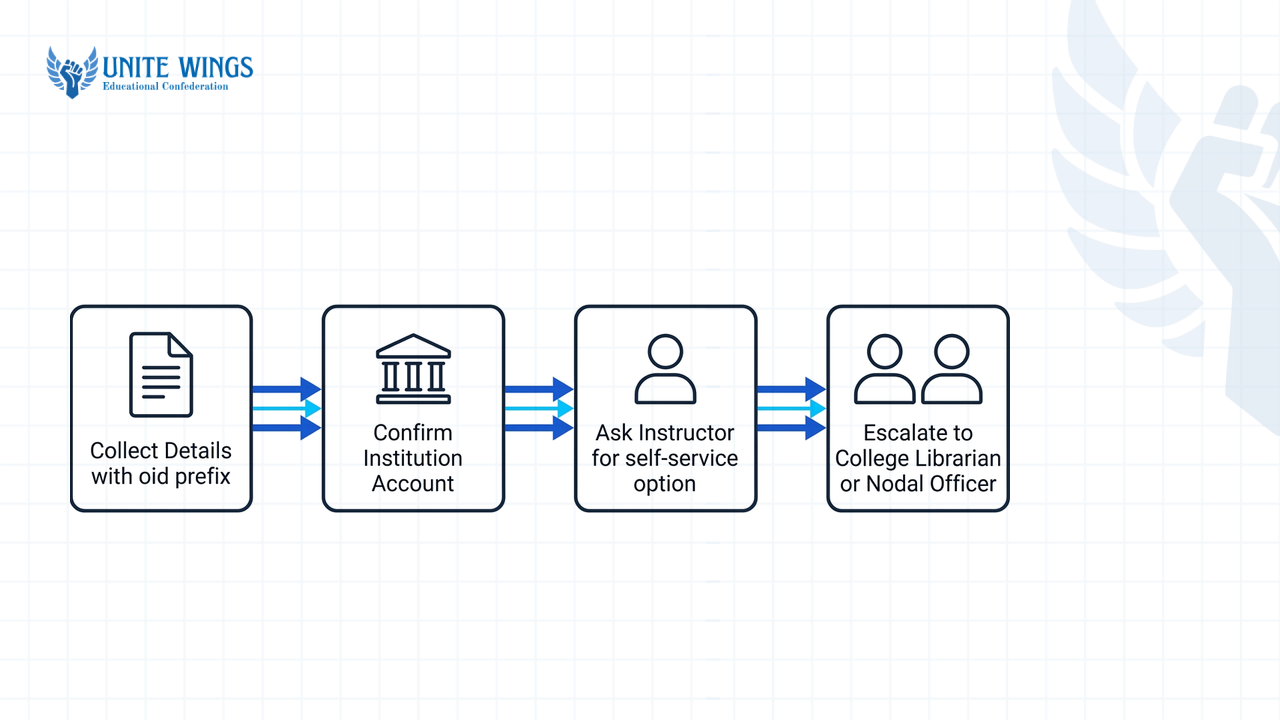
If you need to know how to delete a submitted paper from the Turnitin repository, you have to route the request through the instructor who owns the class where the first copy was uploaded, or directly to your college's Turnitin administrator. Follow these steps in order so your ticket does not get stuck in email threads.
- Collect the four required details: Write down your exact Submission ID (with the
oid:prefix), the Class Name, the Assignment Name, and the date and time you uploaded the file. - Confirm which account holds the file: Check the similarity report breakdown to see the exact institution name shown next to the 100% match ("Submitted to [University Name]").
- Ask your instructor first: Email the faculty member running that class or practice portal. Ask if they have the self-service "Request permanent deletion" option in their assignment inbox, as outlined in Turnitin's instructor guide.
- Escalate to the college librarian or nodal officer: If your professor does not have delete permissions, forward the details to your college's central Turnitin administrator (typically the Head Librarian, IQAC cell, or Academic IT team) so they can delete it via the Manage Submissions tool.
Send this exact message to your professor or college Turnitin administrator so they have everything needed to process the removal in one go:
Subject: Request for Permanent Turnitin Repository Deletion – Submission ID oid:[Your 9-Digit ID]

Dear [Professor Name / Librarian / Nodal Officer],

I accidentally uploaded my [assignment / thesis draft] to a standard repository portal earlier, which is now causing a 100% self-match on my final submission. Could you please process a permanent repository deletion (not just "Remove from Inbox") for the earlier upload?

Here are the submission details for the Paper Lookup tool:
- Submission ID: oid:[Your 9-Digit ID]
- Student Name & Roll Number: [Your Name], [Roll No.]
- Class Name: [Exact Class Name]
- Assignment Name: [Exact Assignment Name]
- Upload Date & Time: [DD/MM/YYYY, HH:MM]

Thank you for your help.

Regards,
[Your Name]
[Department & Semester]
If you are organizing multiple thesis chapters, citation PDFs, and revision drafts across Google Docs before your final upload, keeping a clean version history prevents accidental double uploads. Our Gemini Masterclass shows how to manage research documents and drafts inside Google Workspace without losing track of files.
How long does Turnitin take to permanently remove a paper from the repository?
Once a college administrator approves a permanent deletion request, Turnitin places the paper into a 30-day recovery holding window before wiping it completely. According to Imperial College London, the document sits in an "unreachable" state during those 30 days and is permanently erased only after the 30-day timer expires.
Most guides miss a practical risk here: during that 30-day grace period, the paper is not truly gone. University administrators can still restore the file accidentally, and depending on when the deletion was triggered relative to your re-check, matches can linger briefly until the backend syncs.
Once 30 days pass after approval, the Turnitin Help Center confirms that the paper is permanently wiped and cannot be recovered by anyone, including Turnitin Technical Support. Keep in mind that if you do nothing, standard repository retention is indefinite by default, though specific institutional contracts vary; for example, European privacy rules limit report or data retention to set timelines such as 22 months at Utrecht University.
What if my paper was uploaded through another university's Turnitin account?
If your earlier draft was uploaded through another university's portal, a friend's college login, or a third-party paid checker, your home university's administrator cannot delete it. Deletion rights belong exclusively to the administrator of the institution where that specific upload occurred, as noted by ApexEssays.
Turnitin runs cross-institutional matching across all standard repositories. That means if you paid an online service or asked a friend at another engineering college to check your paper, your text is now sitting inside that foreign institution's database.
Here is the reality of cross-account removals:
- Your own college librarian has zero backend access to another university's Turnitin account and cannot look up that
oid:number. - The outside university's administrator has no obligation or automated workflow to process a deletion request from a student who is not enrolled there.
- Even if your friend asks their professor to delete it, that professor may not have repository deletion rights, leaving the request stalled.
If your paper is trapped in another university's account, stop waiting on a repository deletion. Move straight to the Exclude Sources workaround with your own guide.
Can my guide simply exclude my previous submission source instead of deleting it?
Yes, your guide or professor can exclude your previous submission directly inside the Similarity Report, which drops your score from 100% to your actual similarity percentage immediately. This bypasses the 30-day deletion wait and works even when the earlier copy is sitting in another university's account.
According to the University of Galway, instructors can filter out specific sources without touching the database. Students cannot exclude sources on their own unless the instructor has specifically enabled student viewing and exclusion permissions, which is rare in Indian colleges.
Ask your guide to follow these four steps on your final submission's report:
- Open your Similarity Report in Turnitin Feedback Studio and click the red numerical similarity percentage to open the Match Overview panel.
- Click on the 100% source that points to your own earlier submission ("Submitted to [University Name]").
- Click the Exclude Sources button at the bottom of the panel (or switch to All Sources, select the checkbox next to your earlier upload, and click Exclude).
- Wait a few seconds for Turnitin to recalculate and regenerate the clean Similarity Report without your self-match.
Most guides and exam cells accept an excluded report as long as you show them the digital receipt or draft proving the excluded source is your own earlier upload.
What to do next
- Right now: Open Feedback Studio or your email digital receipt and copy your 9-digit Submission ID (
oid:format), Class Name, Assignment Name, and upload timestamp. - Today (if your deadline is close): Show your guide the digital receipt proving the 100% match is your own prior upload, and ask them to click Exclude Sources in the Match Overview panel so you can submit on time.
- This week (if the first upload was in your own college's account): Send the deletion email template above to your professor or college librarian so the earlier copy enters the 30-day permanent wipe queue.
- Before your next semester upload: Ask your instructor if the practice link is set to "No Repository" before uploading any draft, and never run your thesis through a friend's college login or an unverified third-party checker.
Keep your research and final drafts organized in one place
Avoid last-minute file mix-ups across portals by managing your notes, citations, and thesis revisions cleanly in Google Docs and Drive. Join the Gemini Masterclass to set up a structured research workflow with Gemini, Deep Research, and Docs.
Frequently asked questions
Why am I getting a 100% match on Turnitin when I submitted my own paper twice?
Turnitin's standard assignments add every submitted paper to its global repository indefinitely, so uploading the same text a second time triggers an automatic 100% self-match. Unless the first portal was set to "No Repository" or you overwrote a draft in the same dropbox before the due date, Turnitin treats your first upload as a published source.
Can I delete my own paper from Turnitin as a student?
No, Turnitin blocks students from deleting their own submissions due to institutional contracts and data privacy policies. You must ask the course instructor or your college's Turnitin account administrator to process a repository deletion using your Submission ID.
Does clicking "Remove from Inbox" delete my paper from Turnitin?
No, clicking "Remove from Inbox" only removes the paper from the professor's active assignment folder view. The text remains stored inside Turnitin's global database and will continue to trigger 100% similarity matches against any future uploads unless a permanent repository deletion is completed.
Will resubmitting my assignment overwrite the previous draft?
Resubmitting only overwrites your previous file if your professor enabled multiple submissions and you upload the new draft before the assignment due date. If the deadline has passed, or if you upload the paper to a completely different assignment link, Turnitin creates a new entry and flags a 100% match.
Can Turnitin Technical Support delete my paper if I email them directly?
No, Turnitin Technical Support does not accept or process direct paper removal tickets from students. All deletion workflows are restricted to authorized faculty and institutional administrators at the university account where the paper was originally submitted.
Newsletter
Stay updated with our latest news and insights.